A clean PDF from your phone: how to scan documents with Scanning — and why this app
A document scanner for Android: the page edges are found even on a light desk, several pages become one PDF or JPG, and the screen stays on while you shoot. A walk through the app, plus practical tips for a good scan.
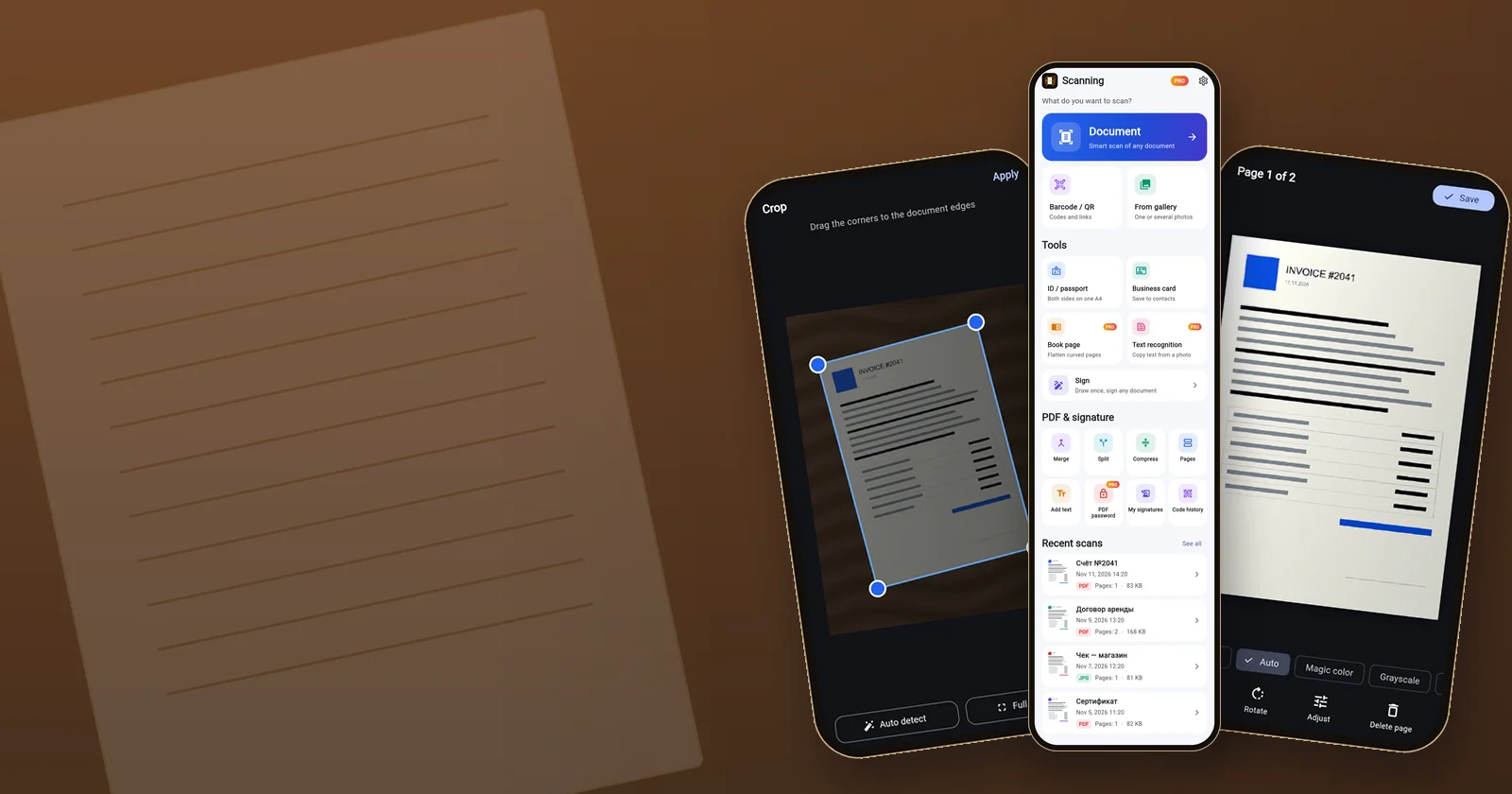
You need to send a contract, a receipt for expenses, or a copy of your ID. A regular photo often comes out crooked, with a shadow from your hand, and is hard to read. Scanning is a document scanner for your phone: point the camera at a page and get a straight, readable file, which you can save as a PDF or JPG, share or print.
No account is needed. Your scans stay on the phone; they are not uploaded into the app’s own cloud. Version 0.2.5 is now being released on Google Play for Android: page edges are found more reliably, including on a light desk, you can shoot several pages in a row into one file, and the screen stays on while the camera is open. The app is not in the App Store yet.
This guide walks through the app screen by screen and offers practical tips for a good scan. Buttons and sections are named as they appear in Scanning in English. Document names and pages in the screenshots are demonstrations: they are sample forms, not anyone’s real papers.
Contents
- 01. The home screen: where to start
- 02. The camera: edges are found for you, and the screen stays on
- 03. The editor: filters and several pages in one file
- 04. Save and share: PDF or JPG
- 05. From the gallery and from other apps
- 06. How to get a good scan: light, background and a flat page
- 07. Tools: ID, business card, book, text and PDF
- 08. Free and Scanning Pro
- Who Scanning is for
- Why Scanning, and not just a photo
- Try it
01. The home screen: where to start
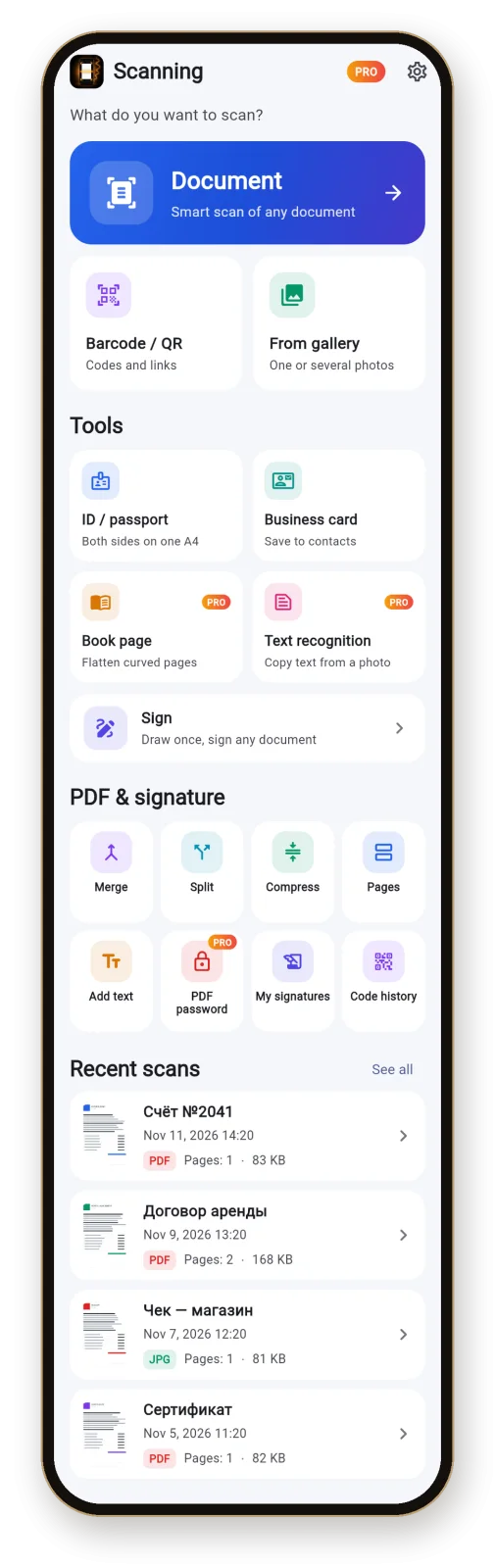
At the top is a simple question: “What do you want to scan?” The large Document button opens the camera — the main path when the page is in front of you. Next to it, From gallery is for photos already on the phone, one or several. Barcode / QR reads a code from the camera or from a photo and keeps a history.
Below is the Tools block: an ID or passport copy, a business card, a book page, text recognition and a signature. Further down are actions for files you have already saved: merge, split, compress, reorder pages, add text or put a password on a PDF. Recent scans appear on this same screen; the full list is in Documents.
You do not create an account. Open the app and you can start scanning.
Example. You arrive at the office with a two-page contract. You tap Document, shoot both pages in one go and get a single PDF, which you can send from the same card.
02. The camera: edges are found for you, and the screen stays on
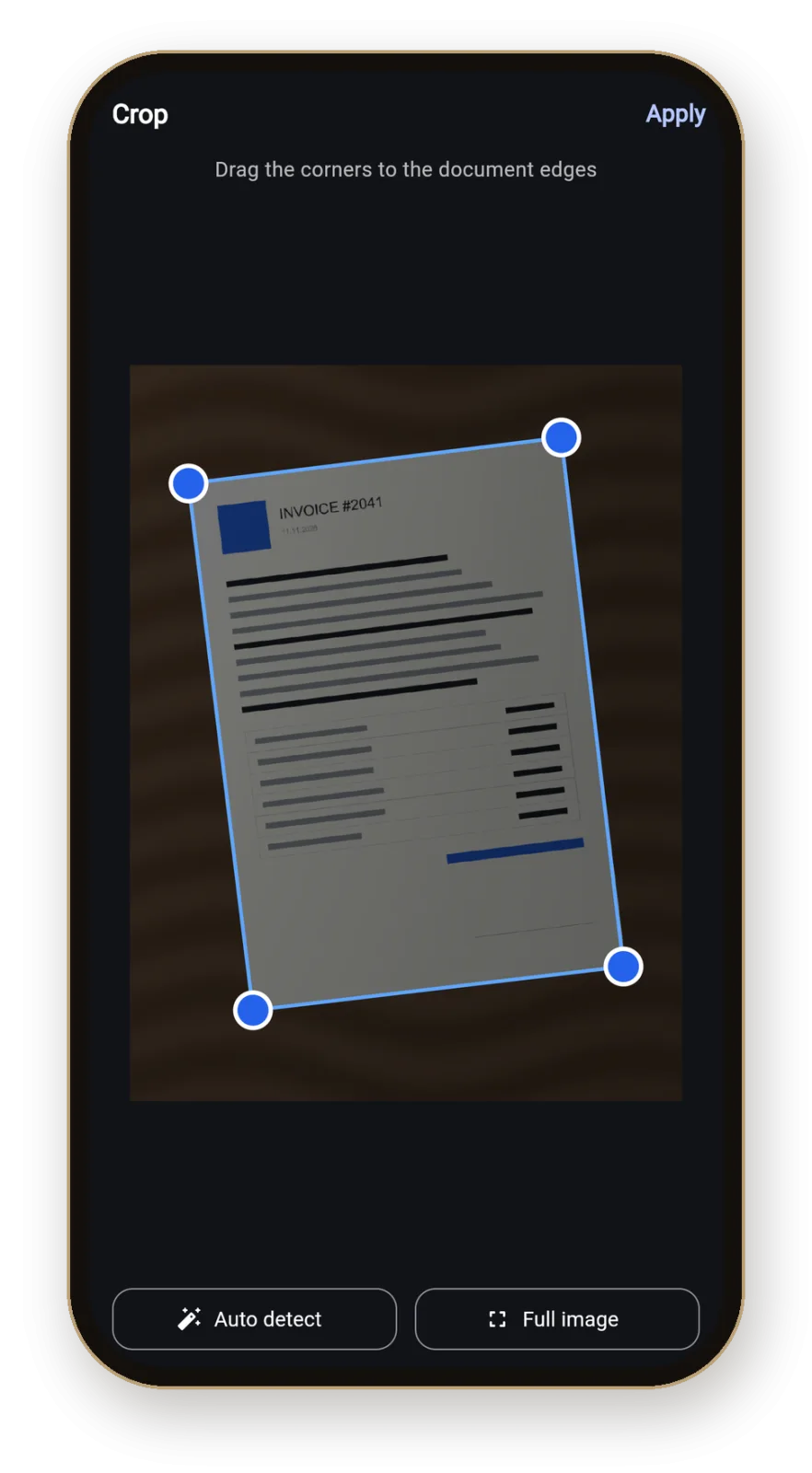
Tap Document and point the camera at the sheet. The app looks for the page edges on its own — including when the paper sits on a light desk and almost blends into the background. If the edges are found confidently, they are already selected. If not, the whole photo is kept, and you can adjust the borders yourself.
While the camera is open, the screen stays on: you can straighten the page without the phone going to sleep at the wrong moment. You can shoot in Manual — by tapping the shutter — or in Auto: the app waits until the page is in the frame and the phone is held steady, then takes the shot. After each Auto shot there is a pause of about ten seconds, enough to turn the page.
Pages are taken one after another in the same session. When you finish, they go to the editor as a single document. In the free version a document can have up to ten pages.
Example. The contract is on a white tabletop, and a regular camera struggles to see the edges. Scanning still finds them; if something is off, you drag the corners on the Crop screen.
03. The editor: filters and several pages in one file
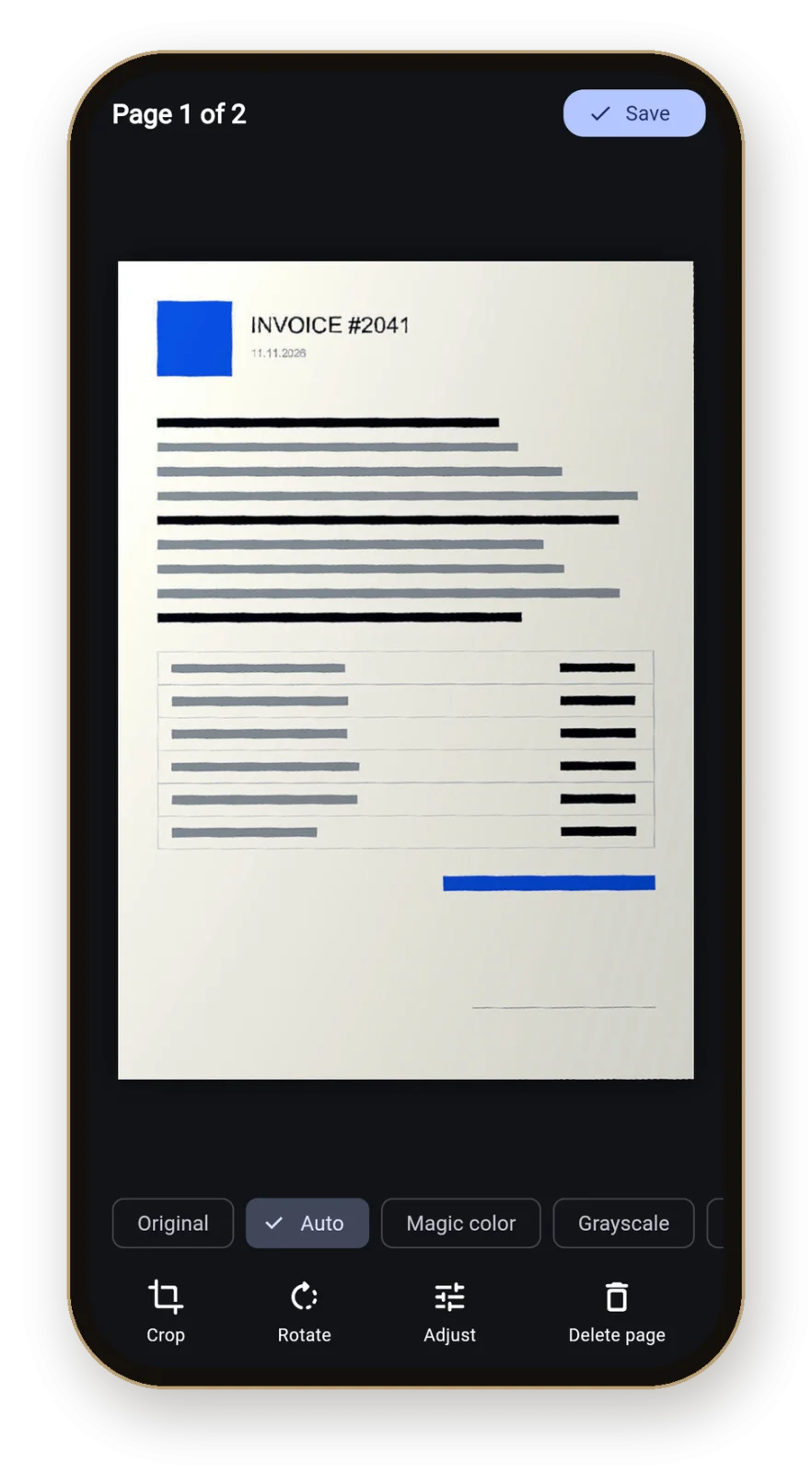
After you shoot, the editor opens. At the top you see which page you are on. The filters help make the text readable:
- Original — as the camera captured it.
- Auto — the usual choice for most paperwork: it straightens the page and cleans the image.
- Grayscale and B&W — when you want a simple text look.
- Magic color removes shadows and makes the paper white. This filter and the contrast, brightness and sharpness sliders are part of Scanning Pro.
If the lines of text are clearly curved, the app gently straightens them — for every filter except Original. Crop and Rotate are always at hand. Add page takes another sheet into the same file.
When you are ready, tap Save and choose a format: PDF or JPG. There is no watermark on the file. The default format can be set in Settings.
Example. A receipt comes out with a yellow shadow from a lamp. You switch the filter to Auto, and the text is readable again. For a three-page set, shoot the pages one after another and save them as one PDF.
04. Save and share: PDF or JPG
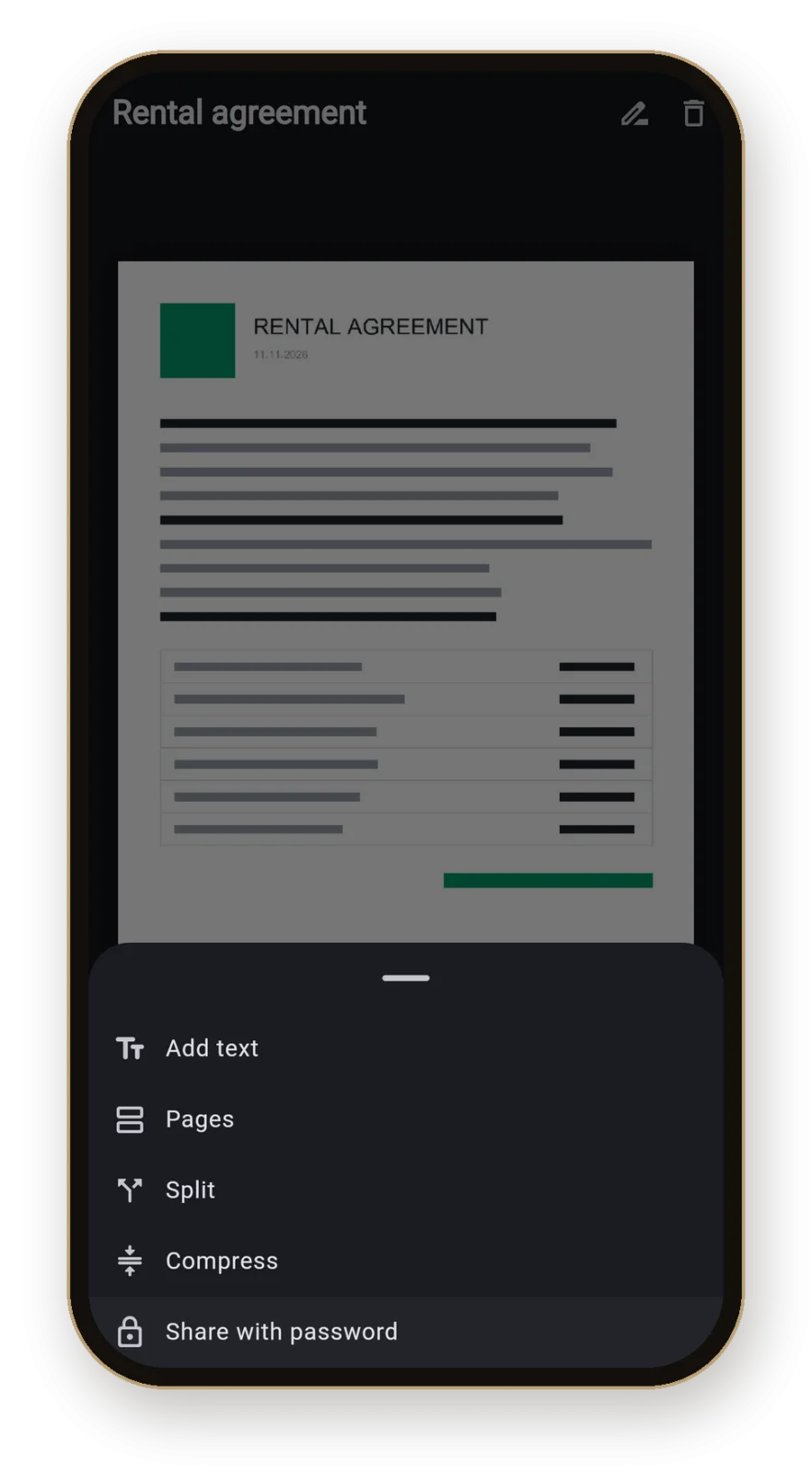
A saved scan opens like an ordinary document. The main action at the bottom is Share: the file goes to the phone’s system sheet, and you choose mail, a messenger or a drive. Next to it is Print. You can rename the file, place a signature or add text on the page.
Under More you will find page order, splitting the document, compression and sending a PDF with a password. The app does not remember the password: without it the file cannot be opened later, so keep that in mind. Password protection is part of Scanning Pro.
Example. Accounts asks for receipts as PDF. You save the scan as a PDF, tap Share and pick mail — without sending the file through the app’s own cloud.
05. From the gallery and from other apps
If the page has already been photographed, you do not have to shoot it again. From gallery takes one or several photos: the edges are found in the same way as after the camera, and the pictures are gathered into one document. In the free version you can take up to five photos at a time; Scanning Pro allows more.
There is another path that is handy day to day. In the gallery, in Files or in mail, open Share and choose Scanning. You can send photos and PDFs. Photos are cropped to the page edges when those edges are found confidently; pages from a PDF stay as they are. Everything that was shared opens in the editor as one document, in the same order you shared it.
If there are more pages than the free plan allows, the app keeps as many as it can and does not drop what it has already taken.
Example. A colleague sends three photos of a contract in a chat. In the message you tap Share, choose Scanning — and get one tidy PDF instead of three separate pictures.
06. How to get a good scan: light, background and a flat page
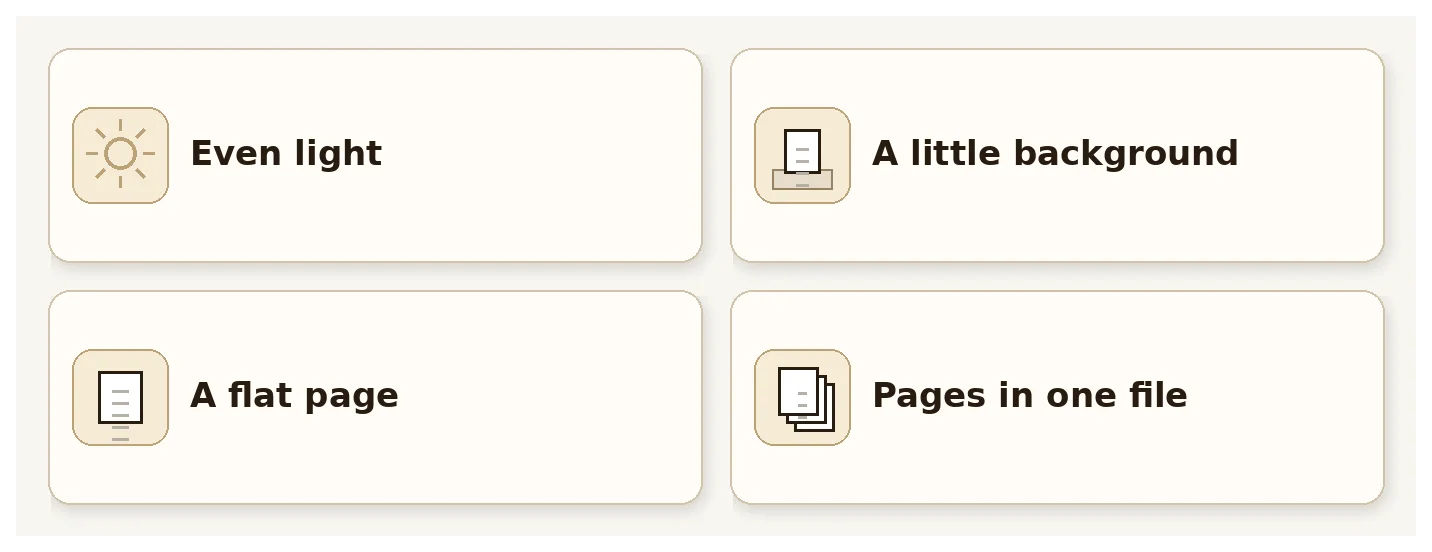
A good scan starts before you press the shutter. These are the habits that make the most difference.
- Light. Even light from the side, or daylight by a window, works better than a flash from above and a hard shadow from your hand. If a shadow still falls on the page, the Auto filter often helps; Magic color in Pro removes it more strongly and brightens the paper.
- Background. Leave a little of the surface around the page — it makes the edges easier to see. Scanning can find a sheet on a light desk as well, but a bit of contrast still helps. If the borders are not found, tap Auto detect or drag the corners yourself; Full image keeps the whole photo.
- A flat page. Smooth out the fold and hold a corner so the sheet does not bulge. Keep the camera over the centre of the page, not from the side. A strongly curved book page is better shot with the Book page tool.
- Several pages. Do not save every sheet as a separate file if they belong together: shoot the pages one after another, or add them in the editor. It is then easier to send one PDF and, if needed, change the order in Pages.
One more small thing: while you aim, the screen stays on, so you can take a moment to straighten the page.
Example. A receipt on a light kitchen counter. You lay it flat, leave a little space around it, catch the daylight — and the edges are found on the first shot, with no retake.
07. Tools: ID, business card, book, text and PDF
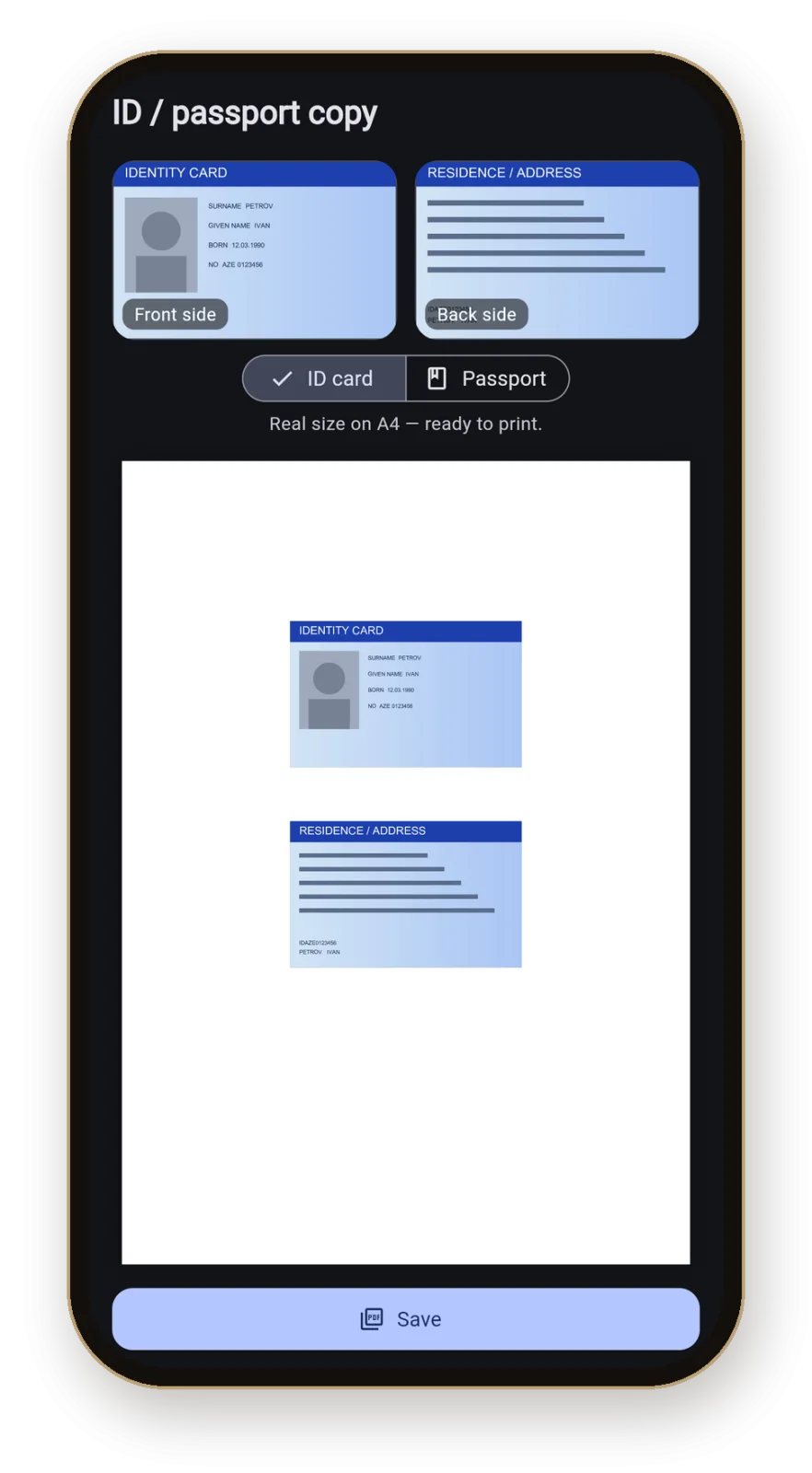
The home screen also gathers special jobs, so you do not have to build them by hand from an ordinary scan.
ID / passport captures the front and back and places them at real size on one A4 page — convenient for printing. You can choose the ID card or passport layout. This tool is free.
Business card reads the name, phone, email and other fields and lets you save the contact on the phone. If something is missed, you can edit the fields. Also free.
Book page flattens a curved page of a book or magazine: first a photo with a little background around the page, then you can compare Before and After. This is a Scanning Pro feature.
Text recognition copies the text from a page. You can share it or add it to the PDF so the file becomes searchable and the text can be selected. Recognition runs on the device. You choose the script: Latin, Cyrillic, Greek, Hebrew, Arabic, Chinese or Korean. Some scripts need a one-time language file of a few megabytes; after that it works without the internet. Text recognition is a Pro feature.
A signature is drawn once and placed on any saved document. The free version stores one signature; Pro stores as many as you need. Merge, split, compress, page order and adding text are available without a subscription. A PDF password is part of Pro.
Example. You need a paper copy of your ID for an office folder. You shoot both sides with ID / passport and print one A4 page — no scissors and no glue.
08. Free and Scanning Pro
For free you can scan documents with automatic edge detection (up to ten pages in one file), import up to five photos from the gallery at a time, use the Original, Auto, Grayscale and B&W filters, save a PDF or JPG with no watermark, and share or print. Also free are the ID copy, business cards, one saved signature, merge and split, compression, page order, adding text, the code scanner, and an app lock and signature lock with a fingerprint or face unlock.
In the free version a small banner ad appears at the bottom of the home screen and the documents list. There are no ads on the camera, the editor or the other work screens.
Scanning Pro removes the limits on pages and gallery import, turns off the ads, and adds Magic color and fine adjustments, text recognition and searchable PDFs, book-page flattening, a password-protected PDF and unlimited saved signatures.
Pro is available as a monthly or yearly subscription, or as a one-time Lifetime purchase with no renewal. Google Play shows the exact price for your country before you pay. A subscription renews until you cancel it in your store account. Purchases can be restored in the app with Restore purchases.
Example. If you scan now and then — a receipt, one certificate, a copy of your ID — the free version is usually enough. If documents come in batches and you need the text from a PDF, Pro is more convenient.
Who Scanning is for
The app is meant for everyday paperwork, not an industrial stack. It is a good fit if you:
- send contracts, forms and invoices as a PDF from your phone;
- collect receipts for an expenses report;
- need an ID or passport copy on a single page;
- want to turn photos of pages you already have into a tidy document;
- prefer the files to stay on the phone, with no sign-up and no cloud of the app’s own.
Why Scanning, and not just a photo
You can photograph a page with the regular camera. The difference is what happens next. Scanning finds the edges, corrects the perspective, gathers several pages into one PDF or a set of JPGs, and offers filters so the text is readable. In version 0.2.5 the edges are found on a light background too, where the sheet almost blends into the desk; the screen stays on while you shoot; and you can send photos and PDFs into the app through Share, without first saving them to the gallery by hand.
- A document scanner with automatic edge detection, including on a light desk.
- Several pages in one file, not a folder of separate pictures.
- Save as PDF or JPG, with no watermark, plus share and print.
- Import from the gallery and from other apps through Share.
- No sign-up: your documents stay on the phone.
- A clear free set, and Scanning Pro when you need text, books and a version without ads.
The limits are worth knowing. The free version allows up to ten pages in a document and up to five photos from the gallery at a time. There are ads, but only on the home screen and in the documents list. Text recognition, Magic color, book flattening and a PDF password are part of Pro. The app is now being released for Android; it is not in the App Store yet.
Try it
Install Scanning from Google Play and scan one page of your own: a contract, a receipt or a certificate. See how the edges were found, save a PDF and send it to yourself. If the photo is already in the gallery, try From gallery or Share. Details and a download link are on the product page. You can also download it directly from Google Play.
Still have a question? Write to us — we will help.