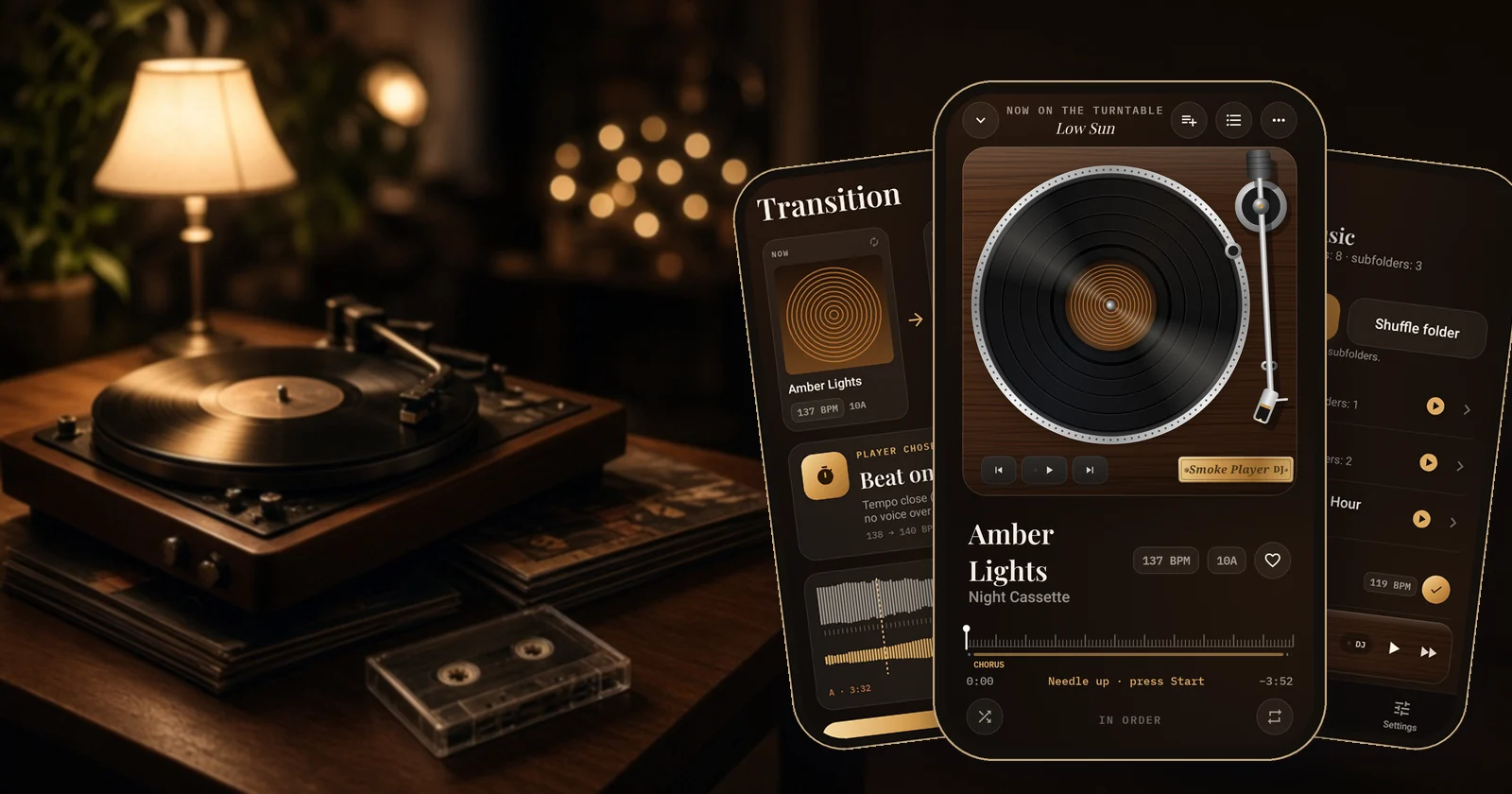
Most music players simply start the next song. You get a gap between tracks, or the same gentle fade every time, even when the two songs have nothing in common. Smoke Player DJ listens to your music more closely. It works out the tempo, the downbeats, the key, the parts of each song and the moment the vocals come in, and then joins the songs the way a DJ would at the decks.
This guide takes you through the app one screen at a time, from your first music folder to a DJ set of your own. It covers both iPhone and Android: the main sections and everyday steps are the same on both. Where the two systems differ, it is pointed out.
The screenshots come from the Android version. Song titles and artists in them are demo data, and buttons and sections are named exactly as in the English version of the app.
Contents
- 01. All your music on one shelf
- 02. Analysis: the player gets to know every song
- 03. The player: vinyl, cassette or just the cover
- 04. Four transition modes and Auto Mix
- 05. The Transitions screen: what the player chose and why
- 06. Folders: play one folder from start to finish
- 07. Almost any format, even the rare ones
- 08. Equalizer and even volume
- 09. DJ playlists and Smoke Player Pro
- 10. How the iPhone and Android versions differ
- Who Smoke Player DJ is for
- Why choose Smoke Player DJ
- Give it a try
01. All your music on one shelf
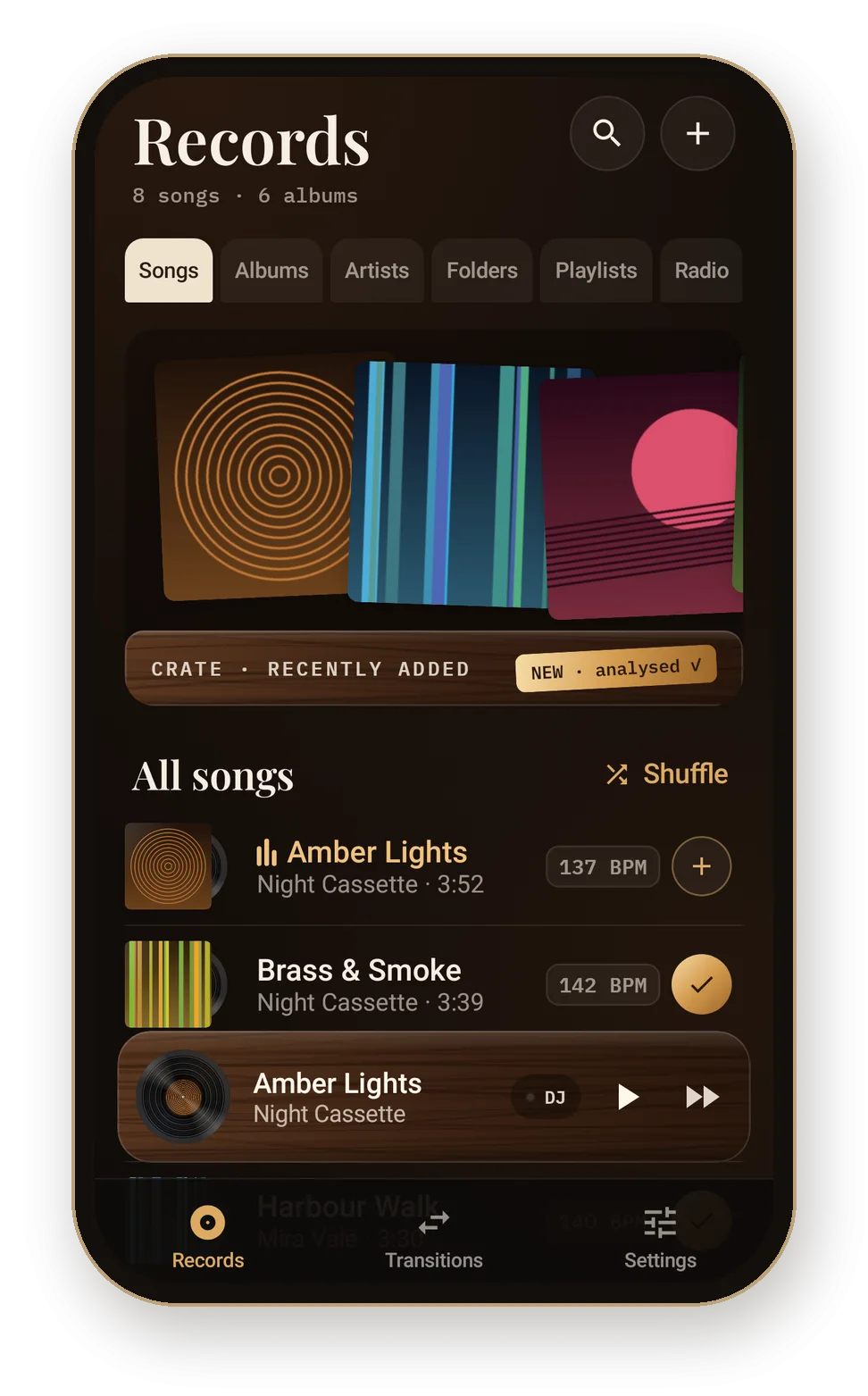
Everything starts on the Records screen. The + button at the top adds music: pick a folder, use the music already on your phone, or add individual songs from the cloud. The player remembers the folders you chose and picks up new songs in them by itself.
The tabs at the top sort your library in different ways: Songs, Albums, Artists, Folders and Playlists. Each song shows its tempo in BPM and its key. Search finds a song, an artist or an album.
On iOS: you can use folders from the Files app (including iCloud Drive and On My iPhone) and iPhone Music, meaning downloaded songs without copy protection. Cloud songs are not copied into the player: the file is fetched from the cloud when you play it. Playlists can be brought over from the Music app.
On Android: you can use folders on the phone and on a memory card, as well as all the music on the phone. Files from Google Drive and other cloud services are copied into the player once and then play without an internet connection. You can bring over playlists from the phone and open M3U and PLS playlist files.
Example. Your phone has a Music folder full of albums you have collected over the years. You choose it once, and every song appears on the shelf straight away, cover art included.
02. Analysis: the player gets to know every song
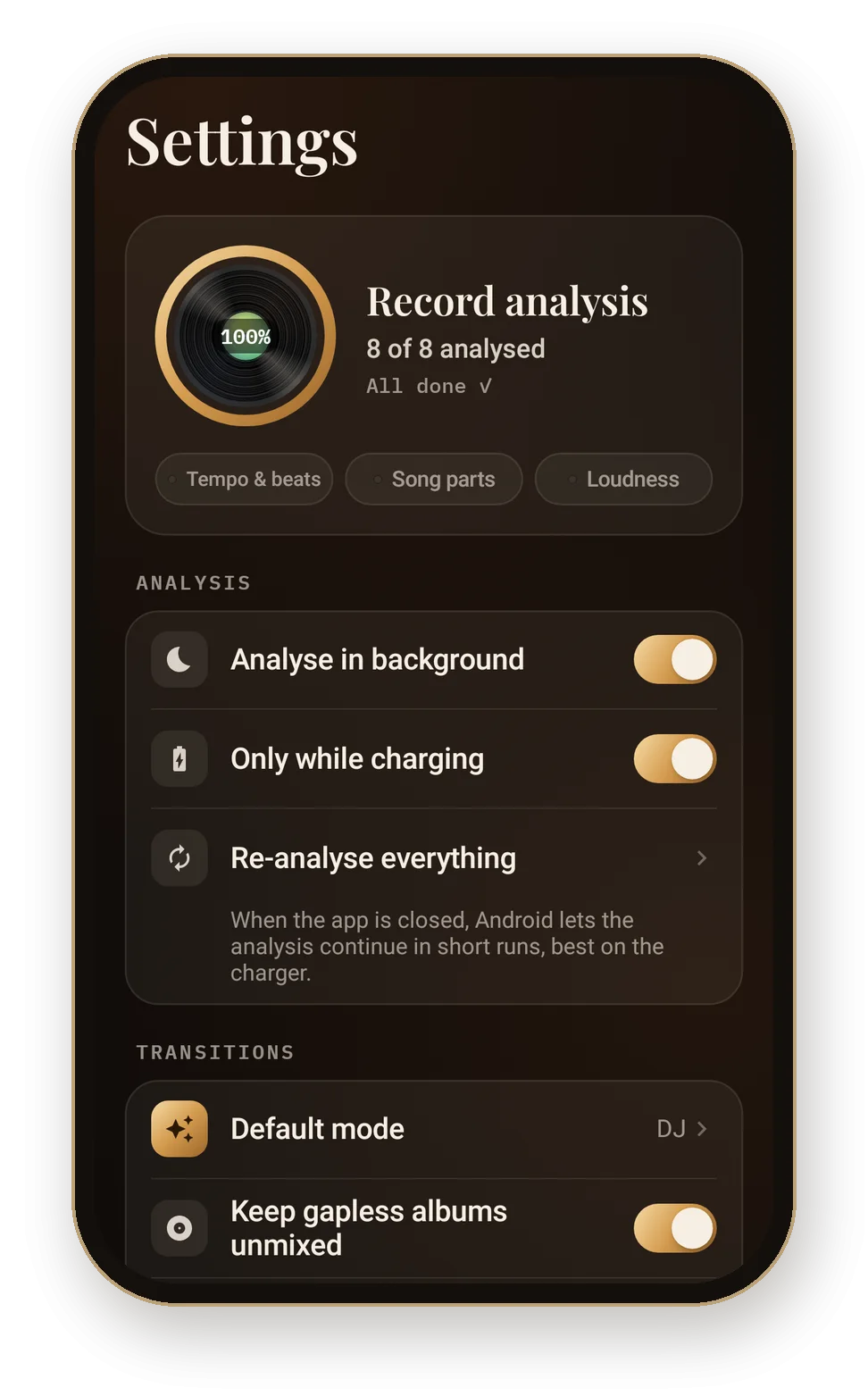
Before it can mix songs, the player first “listens” to them. It detects the tempo and beat grid, the downbeats, the key on the Camelot wheel, loudness and energy. It also finds the parts of each song (intro, verses, choruses, ending) and the point where the vocals begin.
Analysis runs in the background, right on your phone. Your music is never uploaded anywhere. You can follow the progress in Settings, under Record analysis. The same section has the Analyse in background and Only while charging switches, so a large library can be processed while the phone is on the charger.
A song that has not been analysed yet still plays; the player simply joins it to its neighbours with a smooth crossfade. Once the analysis is done, every DJ technique becomes available.
On iOS: analysis results can sync through iCloud, so your other devices don’t have to analyse the same songs again. On Android: when the app is closed, the system keeps analysing in short bursts, ideally while charging.
Example. In the evening you add 500 songs and put the phone on the charger with Only while charging turned on. The phone does the analysis overnight, and in the morning you check the progress without having spent any battery on it during the day.
03. The player: vinyl, cassette or just the cover
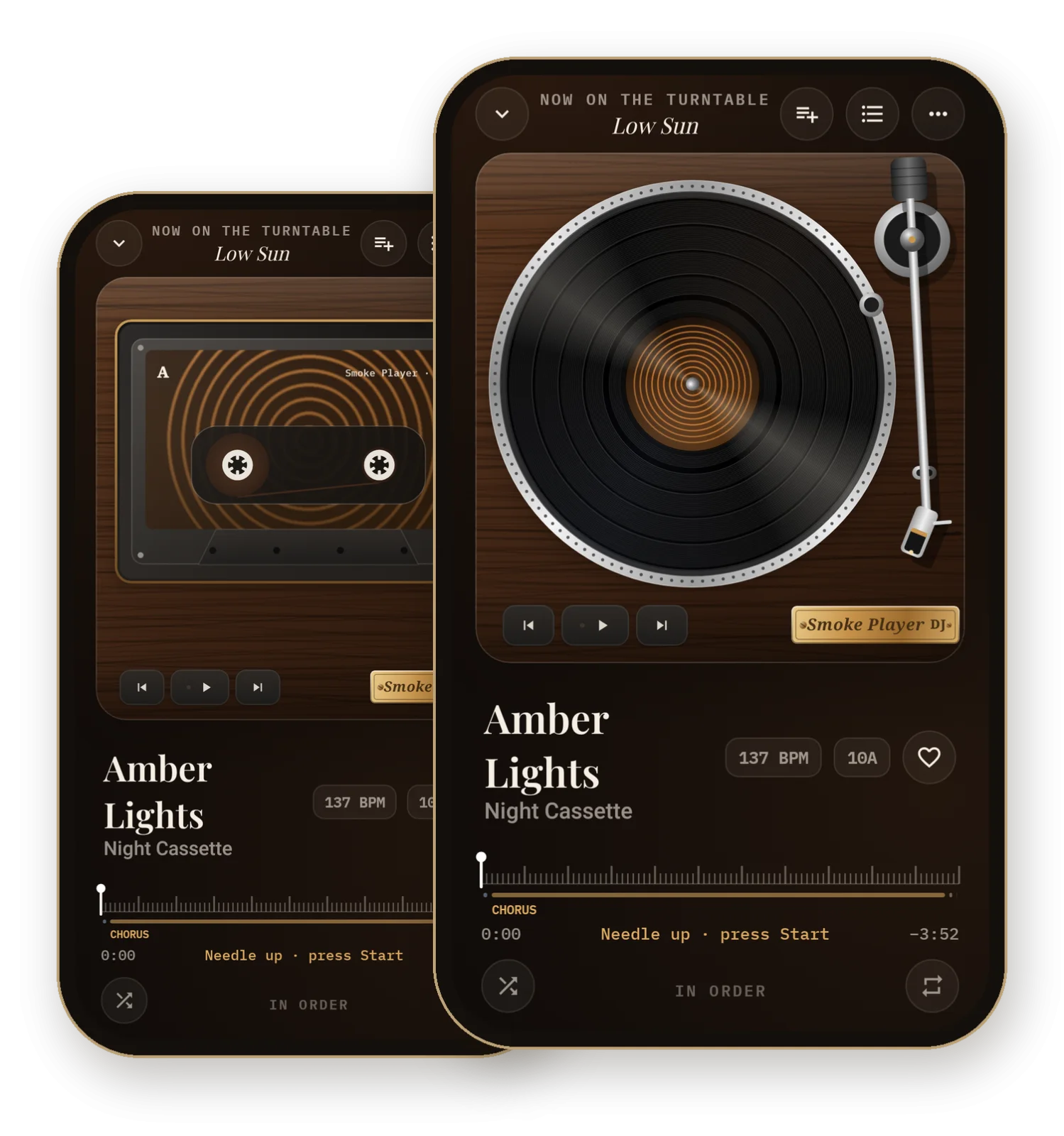
The player screen comes in three looks: a turntable with a record, a cassette deck, or simply the album cover. When you press Start, the tonearm swings over and lowers the needle, and only then does the music begin. A small touch, but it makes listening more enjoyable.
Under the player you see the title, artist, tempo and key of the song. The progress bar marks the parts of the song, such as Chorus. Shuffle and repeat are at the bottom; the Up next queue and the menu are at the top.
For extra atmosphere, turn on Vinyl effect (a soft record crackle) or Cassette tape sound in Settings. Both are optional; by default the sound is clean.
Example. At home in the evening you play vinyl with a light crackle. On the go you switch to the plain cover and Power saving, so the record doesn’t spin on screen for nothing.
04. Four transition modes and Auto Mix
You decide how songs are joined. There are four modes:
Off: songs play back to back, with no gap and no effects.
Normal: one song fades out as the next one fades in.
Radio: quiet intros and long outros are trimmed, and the join lands on a downbeat, just like on air.
DJ: the player picks a technique for every pair of songs. It might be beat on beat, a beat mix with tempo matching, chorus with a filter, a tempo-synced echo, a start right after the last hit, or a record stop.
The default mode is set in Settings. Albums whose songs flow into each other without a pause are left unmixed, so the artist’s intent stays intact. You can change this with the Keep gapless albums unmixed switch.
Auto Mix chooses the next song for you: the one that fits best by tempo, key and energy, while avoiding recent repeats. Songs you have queued yourself with Play next or Add to queue always keep their place.
Example. At a party you switch on DJ mode and Auto Mix. The player runs the evening on its own, and when a guest asks for a song, you tap Play next and it comes on right after the current transition.
05. The Transitions screen: what the player chose and why
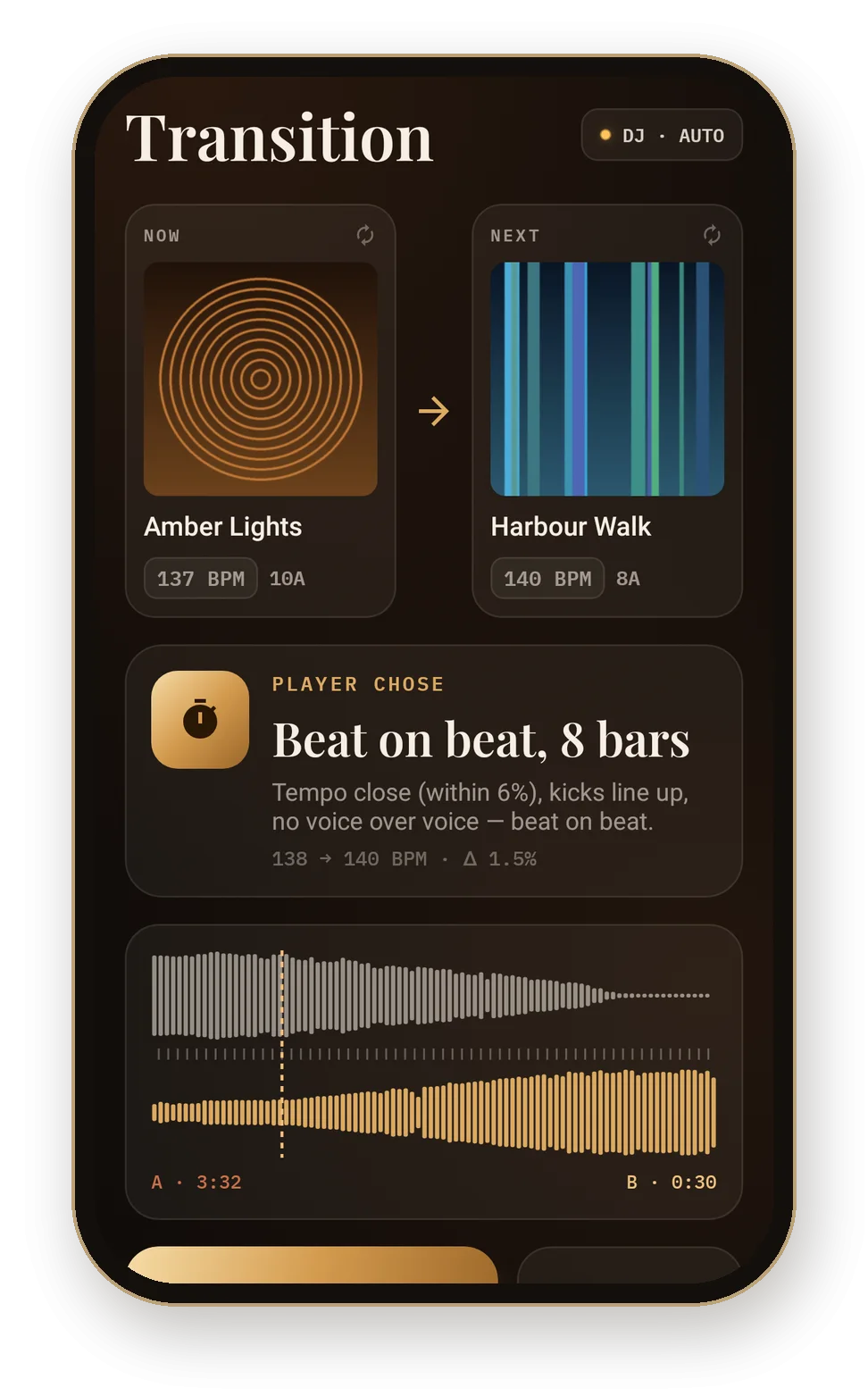
The Transitions tab shows how the player will join the current song to the next one. Under Player chose you see the technique, for example “Beat on beat, 8 bars”, with a plain-language explanation of why it suits this pair. Below are the two waveforms with the point where they meet.
Hear the transition plays exactly that join. Rate transitions with 👍 or 👎 and the player gradually learns your taste. If you’d rather decide yourself, Manual setup lets you choose the technique and its length, though usually you won’t need it.
Example. You didn’t like how an echo picked up a slow song. You tap 👎, and next time the player is more likely to choose a different technique for a similar pair.
06. Folders: play one folder from start to finish
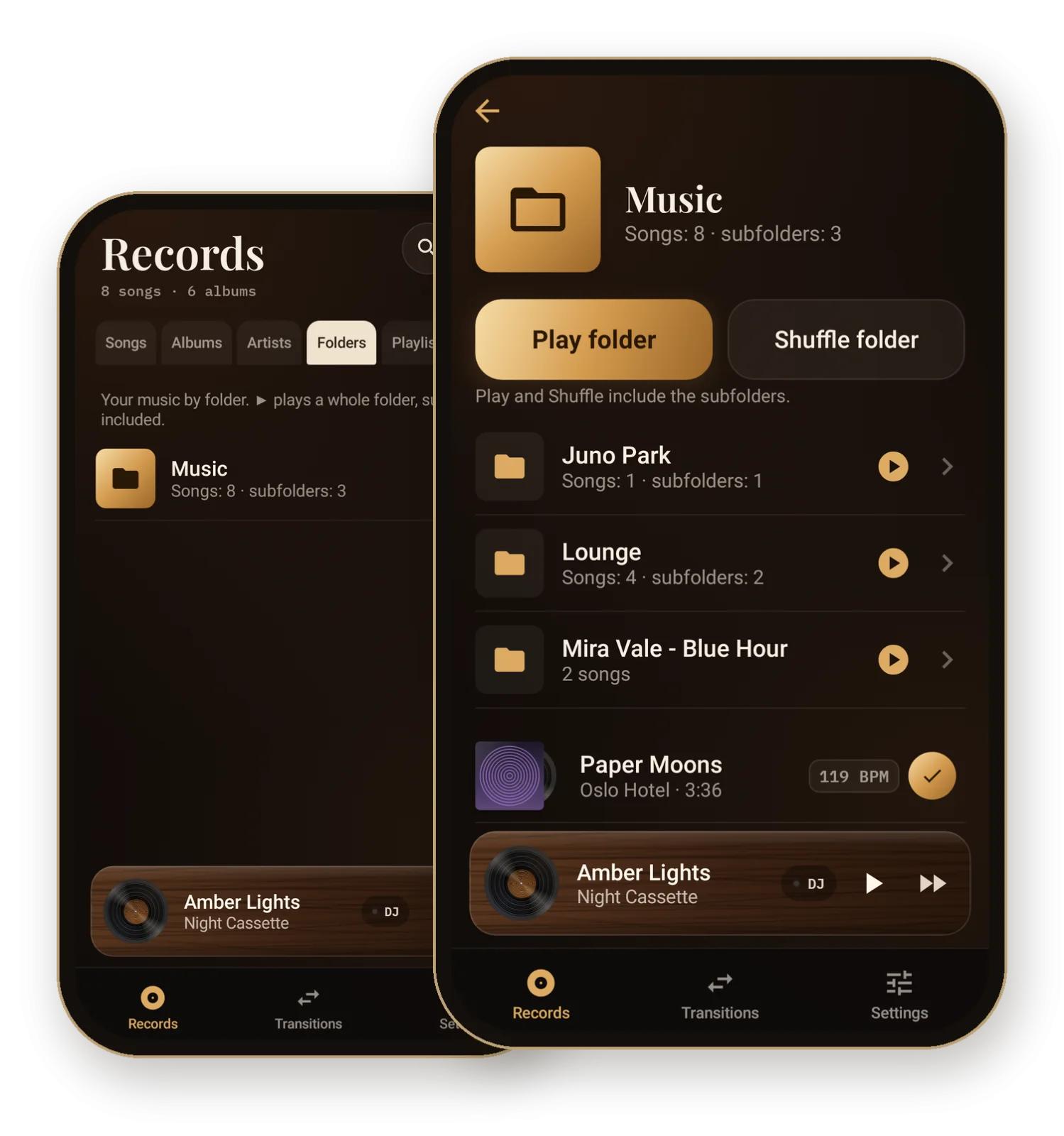
Many people keep their music the way they always have: in folders of albums, compilations and mixes. The Folders tab shows your music exactly as it is organised on the phone, with the number of songs and subfolders in each folder.
Open a folder and tap Play folder or Shuffle folder. Both include the subfolders. Each subfolder also has its own ▶ button to play just that one. With Auto Mix, the folder becomes the pool it picks songs from; without it, songs play in order.
On iOS: songs from the Music app have no folders, so you’ll find them under Songs, Albums and Artists. On Android: the phone’s music can also appear in Folders, following the paths the system makes available.
Example. For a quiet evening you have a Lounge folder with two subfolders. You tap Shuffle folder and hear only that music, without the rest of your library.
07. Almost any format, even the rare ones
Smoke Player DJ plays far more than MP3 and AAC. It opens MP3, AAC and M4A, FLAC, ALAC, WAV, AIFF, OGG and Opus, WMA (including WMA Pro and WMA Lossless), APE, WavPack, DSD (DSF and DFF), Musepack, TTA, TAK, AC3, DTS and more. These songs also get a title, cover art and duration, and they take part in analysis and DJ transitions just like MP3s.
The first time you play a song in a rare format, it may take a little longer to prepare. After that it usually opens faster thanks to the cache. If a file still can’t be read, for example because it is damaged or uses a very unusual variant of its format, it doesn’t just silently disappear. The song stays in the list marked Can’t be played on this phone (on iPhone, …on this iPhone), and tapping it shows a clear explanation.
Example. You still have a concert archive in APE and old albums in WMA. Add the folder to the player: supported files don’t need converting by hand, and they can join DJ transitions alongside your MP3s.
08. Equalizer and even volume
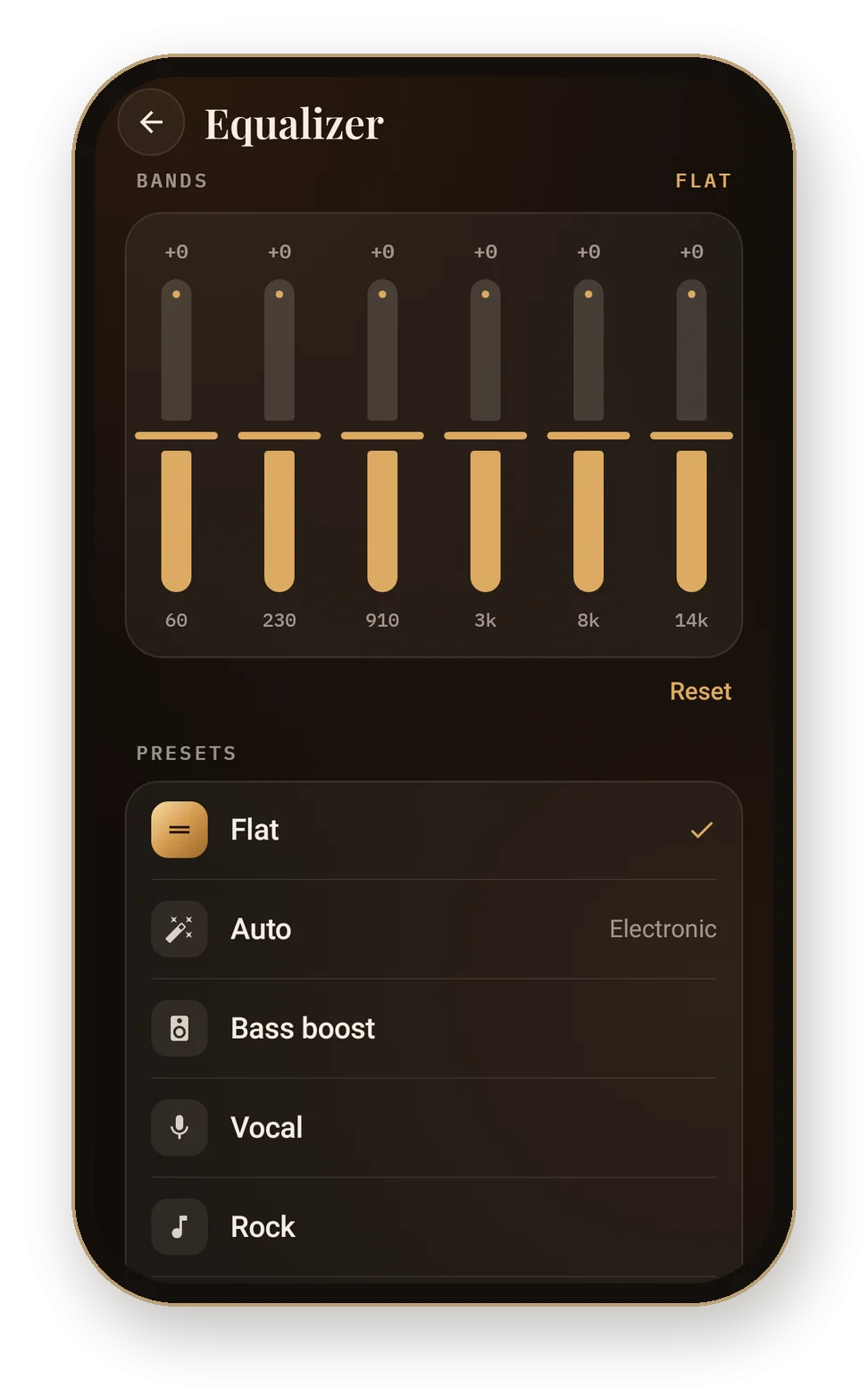
The Equalizer has six bands and ready-made presets: Flat, Bass boost, Vocal, Rock, Electronic, Hip-hop, Acoustic and Night / loudness. The Auto preset picks a setting for each song based on its frequency balance. Move any slider and the equalizer switches to Manual.
The Normalize track volume switch helps even out loudness differences between recordings, including during transitions. It is handy for collections that mix albums from different decades.
Example. You are listening on headphones late at night. The Night / loudness preset and volume normalisation make it more comfortable, while you still set the headphone volume yourself.
09. DJ playlists and Smoke Player Pro
When a transition turns out especially well, you can keep it. Pick songs 1 and 2 on the Transitions screen, listen to the join and tap Add pair. Song 2 then becomes song 1 of the next pair, and step by step you build a chain: your own DJ set. In a DJ playlist the songs play in order with the transitions you saved.
Regular playlists, transitions, the equalizer, folders and every format are free. You can also create 3 DJ playlists of 10 songs each for free. Smoke Player Pro removes these limits and lets you give playlists your own names. Pro is available as a monthly or yearly subscription or as a one-time lifetime purchase. The app store shows the price, and Restore Purchases brings your access back in the same store under the same account.
There are no ads and no sign-up in the app.
Example. For a friend’s birthday you put together a chain of the group’s favourite songs in advance and check every join. On the night, all that’s left is to press Play.
10. How the iPhone and Android versions differ
The essentials are the same: analysis, transition modes, Auto Mix, the Transitions screen, folders, formats, the equalizer, DJ playlists and Pro. On both systems you can control playback from the lock screen and with headphone buttons, and after a call the music picks up where it left off.
On iOS: there are Home Screen and Lock Screen widgets, an Apple Watch app (cover art, controls, volume with the Digital Crown, modes, shuffle and Auto Mix) and iCloud sync for analysis results. The app runs on iPhone and iPad, including in landscape. DJ transitions apply to audio files you have access to, not to protected songs from subscription services.
On Android: you can play music from a memory card, bring over playlists from the phone and open M3U and PLS playlist files. Cloud files are copied into the player and play without an internet connection.
Who Smoke Player DJ is for
People with their own music collection. If you have spent years collecting albums as files, the player gives them a second life, with folders, cover art and support for rare formats.
Parties and evenings at home. The music never cuts out or goes quiet between songs, and Auto Mix picks the next one. You don’t have to stand by the phone.
Workouts and travel. A continuous mix with even volume is handy when you don’t want to keep skipping tracks.
Aspiring DJs. The Transitions screen shows why a pair of songs is mixed the way it is: a hands-on way to understand tempo, downbeats and key compatibility.
Anyone who values privacy. No sign-up and no ads. Analysis happens on the phone and your music is never uploaded.
Why choose Smoke Player DJ
If all you want is to play an album from start to finish, an ordinary player may be enough. If you want to work two decks by hand and perform, take a look at dedicated DJ apps as well. Smoke Player DJ solves a different problem: it makes everyday listening to your own collection feel seamless, without asking you to manage every join.
What sets it apart is not a single effect but the combination: folders and a wide range of formats, on-device music analysis, automatic choice of transition and a screen that explains that choice. Instead of the same fade at every join, it picks a technique based on the analysis of each specific pair. Results depend on the music and on how accurate the analysis is, so the best way to decide is to listen to a few transitions with your own songs.
- Your own collection comes first; there is no need to rebuild it in a streaming catalogue.
- WMA, APE, WavPack, DSD, Opus and other supported files can be analysed and mixed together with MP3.
- You can play a single folder with all its subfolders and keep the structure you’re used to.
- You can see why a transition was chosen, and save a pair you like to a DJ playlist.
- The main features are free to try, with no ads and no sign-up.
This is not a promise of a perfect mix for every kind of music, and not a way to download songs from closed catalogues. For local listening, you first need audio files of your own that you have access to.
Give it a try
Start small: choose one folder of music you love, let the player analyse it and turn on DJ mode. Listen to a few transitions and compare the feel with ordinary playback in order. Details and the download link are on the app page.
Have a question? Write to us and we’ll help.