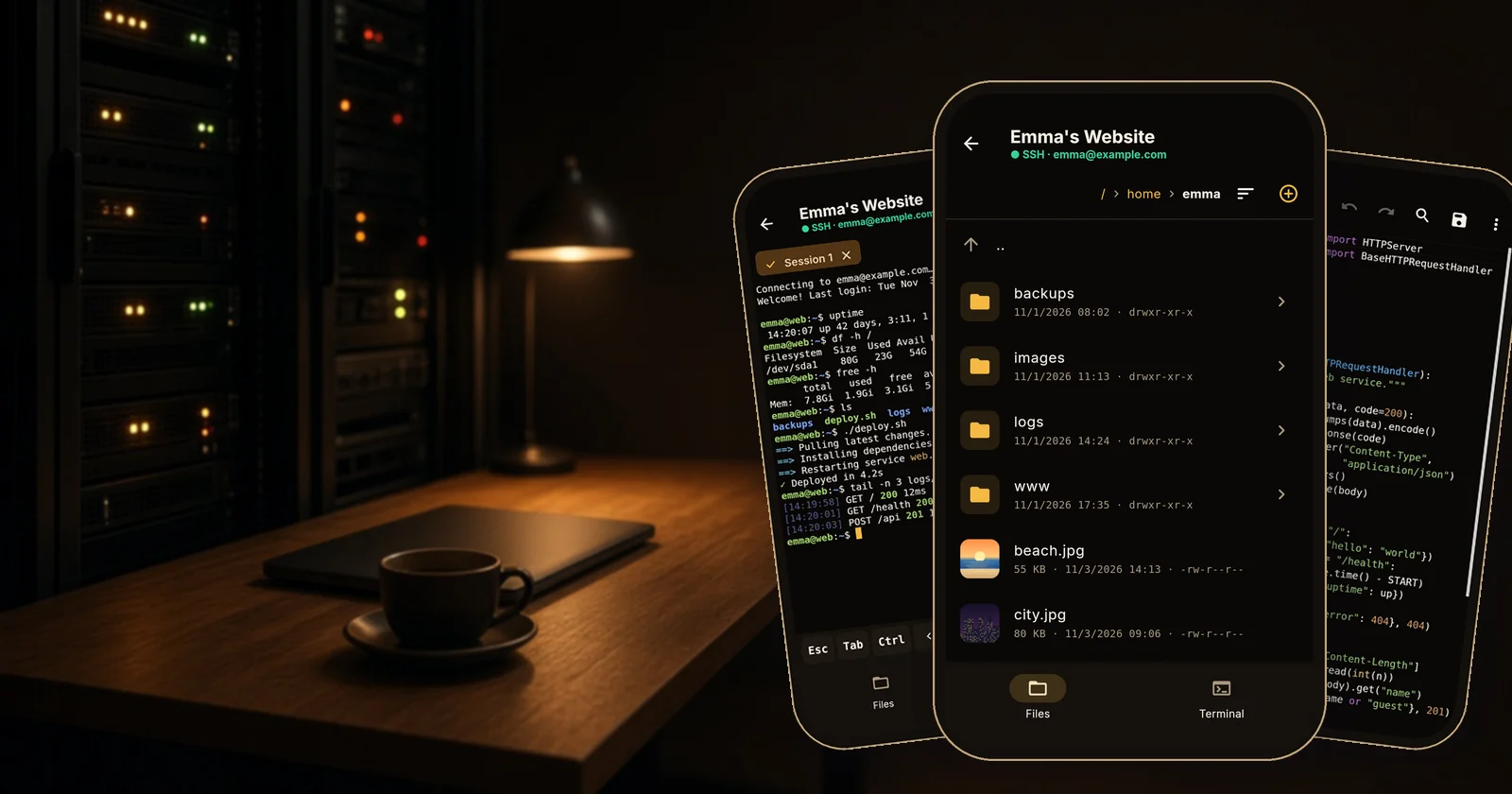
Your website has stopped loading and your laptop is nowhere near. Or you need to fix one line in a config, restart a service, or grab a fresh backup from the server. You don’t have to sit down at a computer for jobs like these. My Server: SSH & FTP puts everything you need to work with your own servers on your phone: files, a code editor and a terminal.
This guide takes you through the app screen by screen, from adding your first server to the terminal and the security settings. It covers both iPhone and Android: the screens and steps are the same. Where the two systems differ, this is pointed out separately.
The screenshots were taken in the Android version. The server names, addresses and the files on them are for demonstration only, and buttons and sections are named exactly as in the English version of the app.
Contents
- 01. All your servers on one screen
- 02. Add a server: SSH, SFTP, FTP or FTPS
- 03. Log in with a password or an SSH key
- 04. Files: server folders, just like a file manager
- 05. Upload, download, rename: the usual file actions
- 06. Photos, videos and music straight from the server
- 07. A code editor with syntax highlighting
- 08. An SSH terminal with a handy key bar
- 09. Security: your passwords and keys stay with you
- 10. How the iPhone and Android versions differ
- Who My Server is for
- Why My Server
- Frequently asked questions
- Give it a try
01. All your servers on one screen
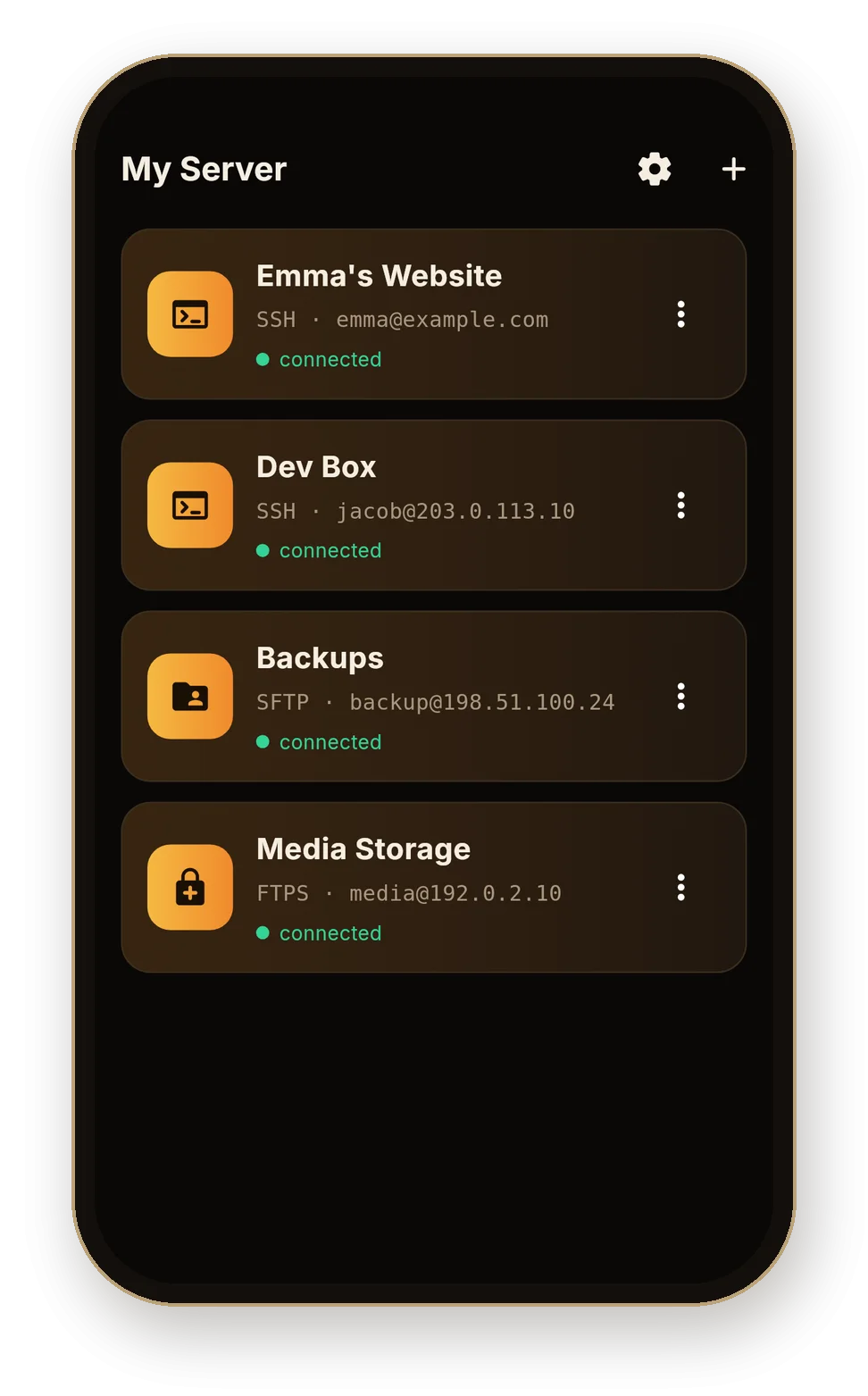
The main screen shows all the servers you have added. Each card shows the name, protocol, user and address, with the status below it: connected, connecting…, error or not connected. Tap a card to open the server.
The + button at the top adds a new server, and the gear icon opens Settings. To edit or delete a server, press and hold its card or open the ⋮ menu. Deleting removes only the entry and the saved login details in the app; nothing changes on the server itself.
Example. You have a website on one hosting provider, a work server at a colleague’s and storage for backups. All three sit in one list, and the status tells you at a glance which one you are already connected to.
02. Add a server: SSH, SFTP, FTP or FTPS
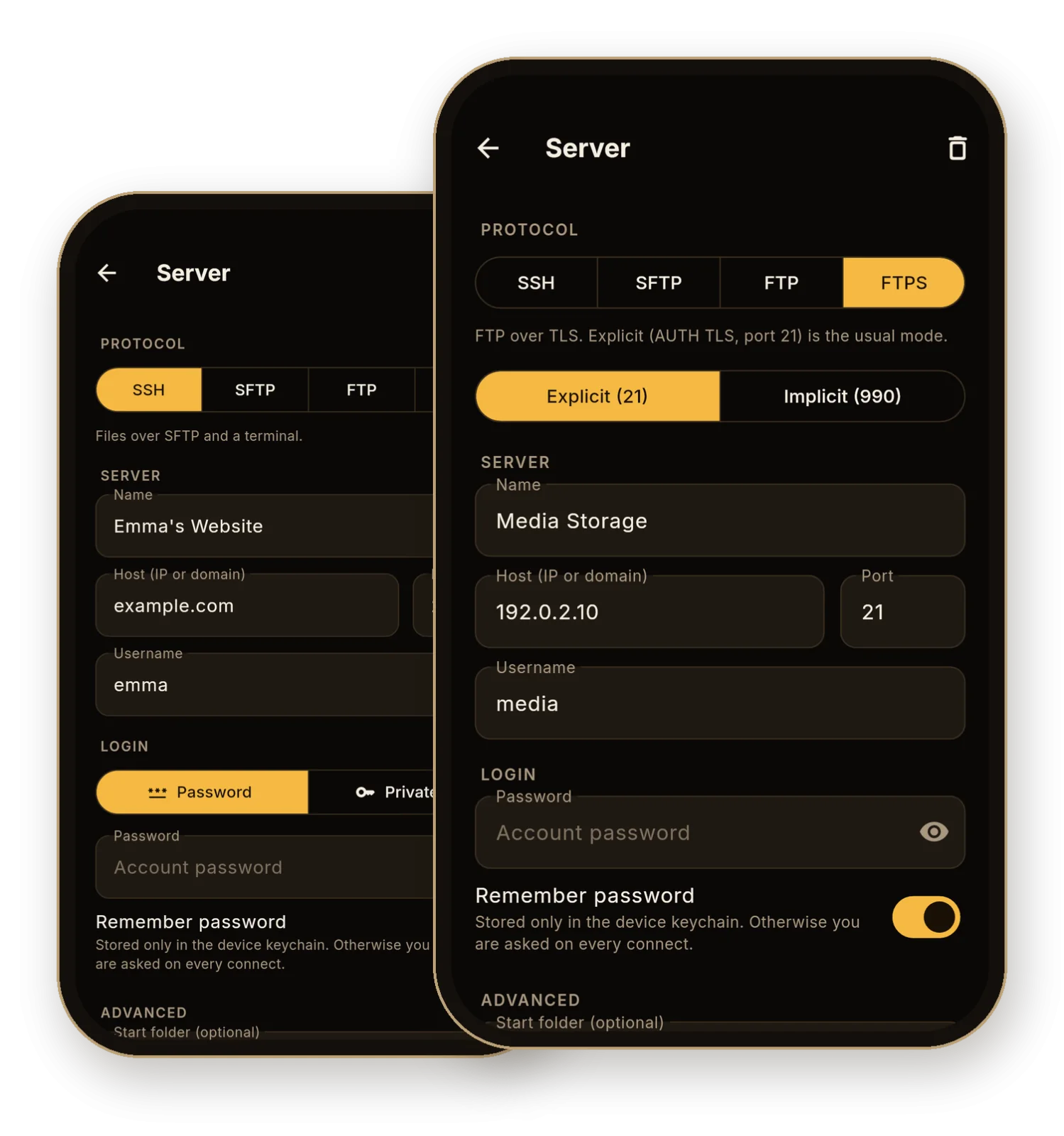
First choose the protocol. Under each one, the app briefly explains what you get:
- SSH: files over SFTP and a terminal.
- SFTP: files only, for accounts that have SFTP only.
- FTP: plain FTP. It is not encrypted, so the app says so plainly and recommends FTPS or SFTP instead.
- FTPS: FTP over TLS, in explicit mode (port 21) or implicit mode (port 990).
Then fill in Name, Host (IP or domain) and Username. The port is filled in automatically for the chosen protocol, but you can change it. For FTP you can leave the username empty, and the login will be anonymous. Under Advanced you can set a start folder, for example /var/www, so you land straight in the folder where your website lives.
Example. Your hosting provider gave you FTPS access to your website only. You choose FTPS, leave Explicit (21), enter the host and login from the provider’s email, and the website folders open in the app.
03. Log in with a password or an SSH key
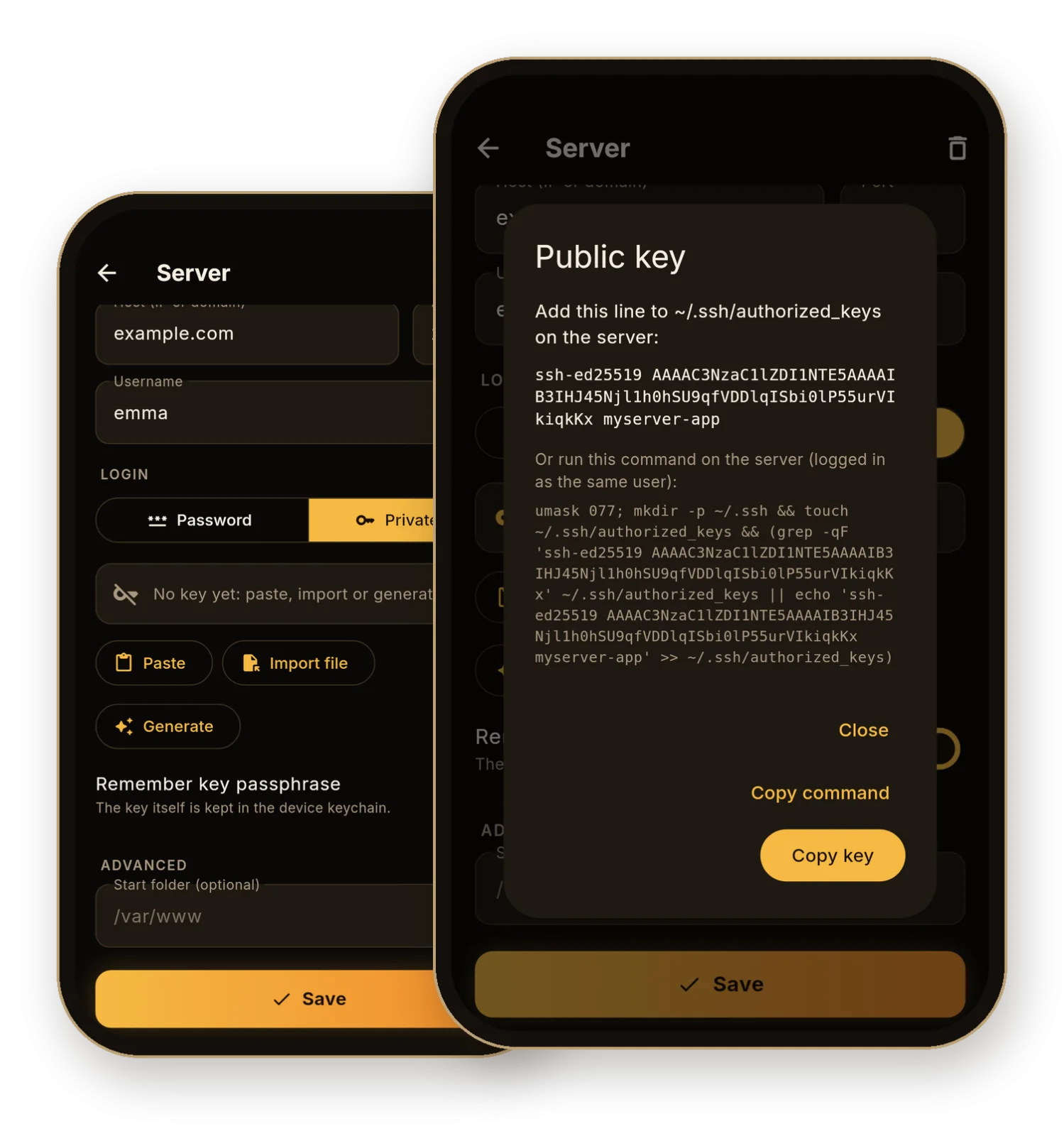
In the Login section, choose Password or Private key. You can paste a key from the clipboard, load it with the Import file button or create one right in the app with the Generate button. OpenSSH, PEM RSA and EC, Ed25519 and ECDSA keys are supported, including passphrase-protected ones.
When you generate a key, the app creates an Ed25519 key and immediately shows the Public key. You can copy it, or take the ready-made command that adds the key to ~/.ssh/authorized_keys on the server. The private key never leaves the app.
The Remember password switch (for a key: Remember key passphrase) stores the secret only in the device’s secure storage. If you turn it off, the app will ask for the password on every connection.
Example. You want to stop typing the server password on your phone. You tap Generate, copy the command, run it once on the server, and from then on you log in with the key.
04. Files: server folders, just like a file manager
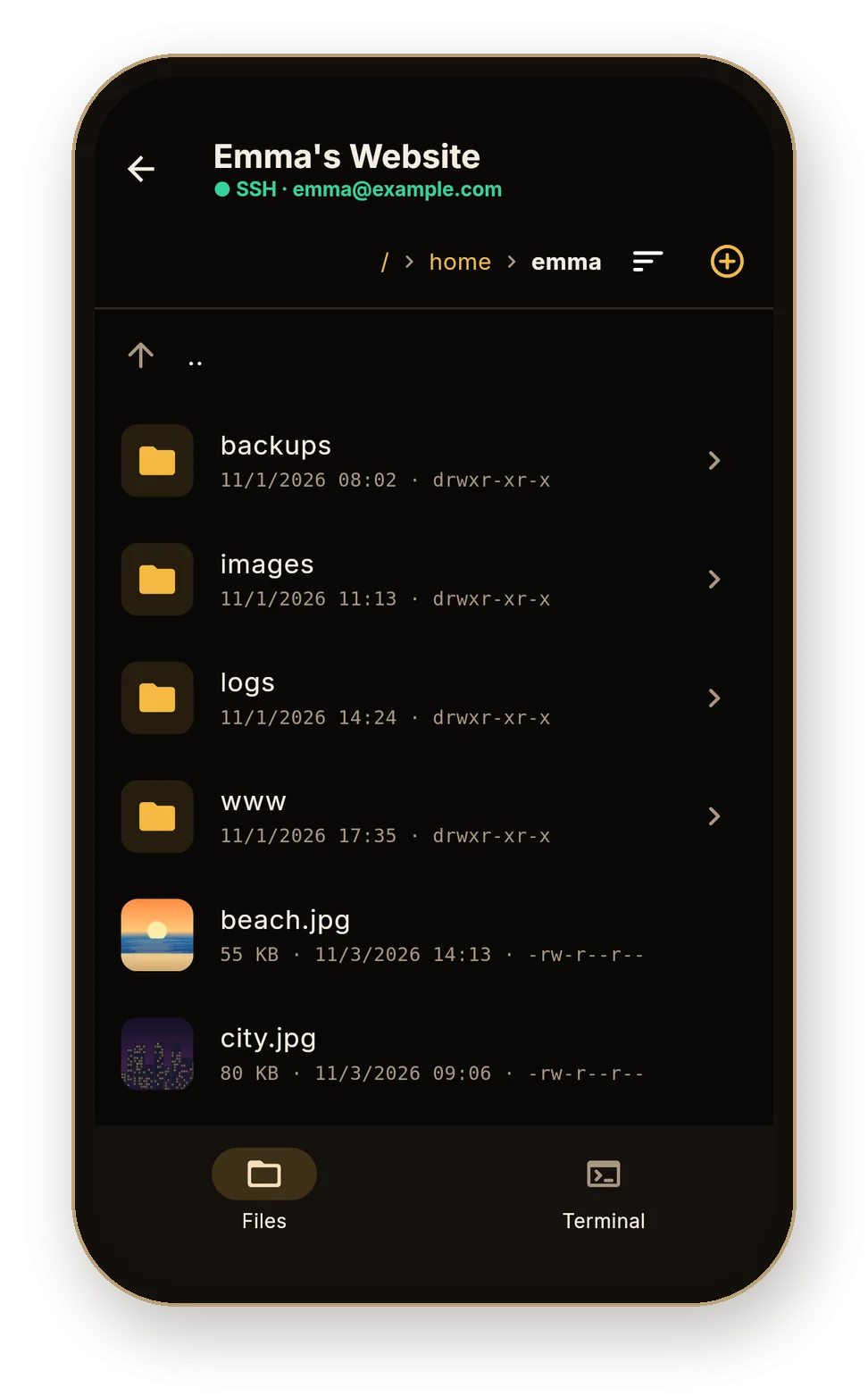
The Files tab works with all four protocols. The path is shown at the top, and you can use it to jump back to any folder above. Each file shows its size, modification date and permissions, photos have thumbnails, and different file types get their own icons: configs, logs, archives, scripts, databases.
The sort button orders the list By name, By size, By date or By type. In the same place you can turn on Hidden files, for example to find .htaccess or .env.
Example. Your server is running out of space. You open the backups folder, sort By size and see straight away which archives take up the most.
05. Upload, download, rename: the usual file actions
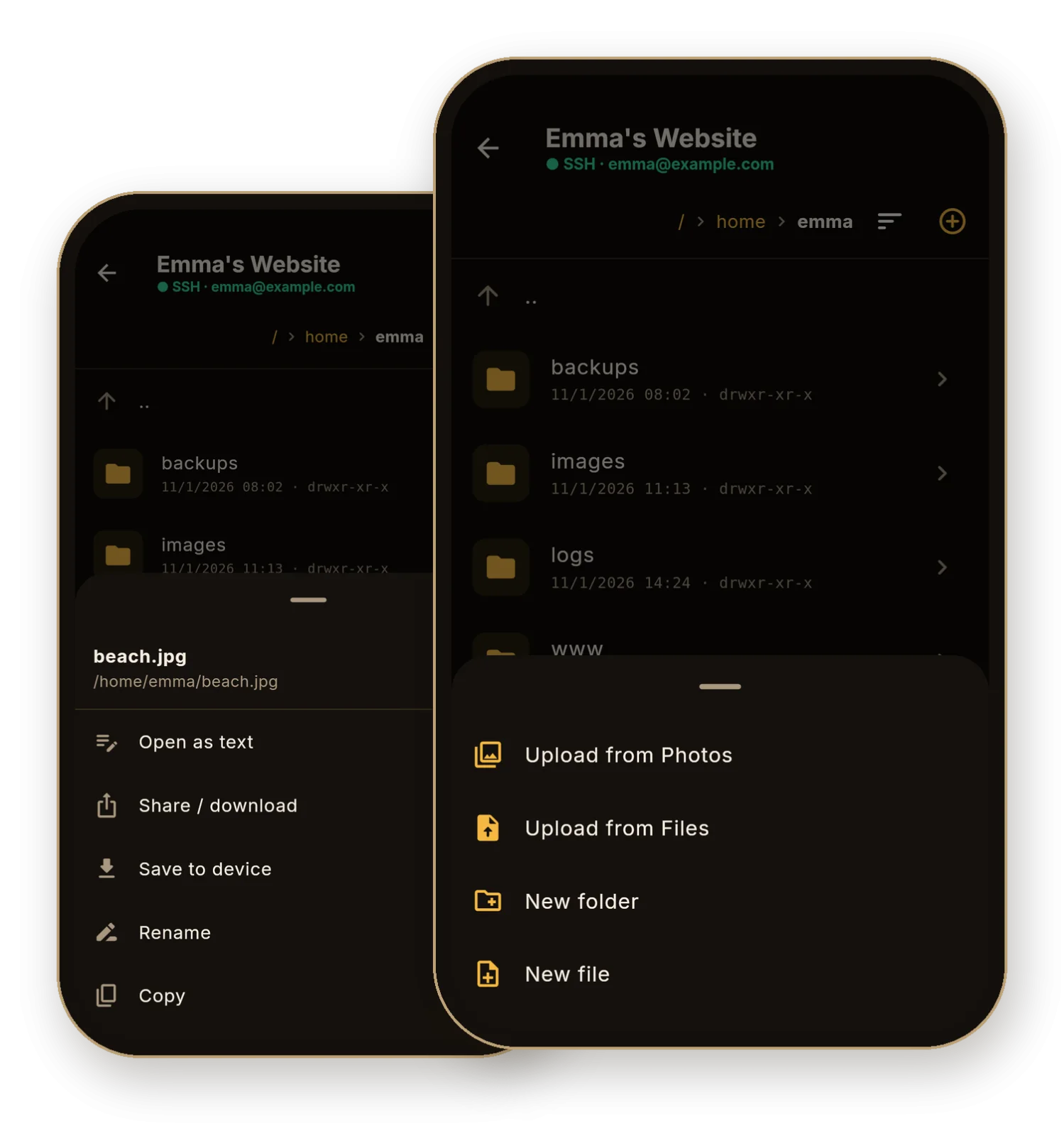
Press and hold a file to open its actions: Share / download, Save to device, Rename, Copy, Move, Copy path, Properties and Delete. Properties show the path, type, exact size, modification date, permissions and owner. The app always asks for confirmation before deleting, and it won’t let you delete system folders.
The + button next to the path uploads photos and videos from your gallery or any files from your phone to the server, and also creates a new folder or an empty file. While an upload is running, you can see which file is being transferred and how much is done.
FTP itself has some limits: over FTP you can’t copy folders on the server, and a file copy is limited to 100 MB. Save to device works for files up to 200 MB; larger files can be saved via Share.
Example. A client has sent new photos for the website. You open the images folder, tap + → Upload from Photos and pick the shots. A minute later they are on the website.
06. Photos, videos and music straight from the server
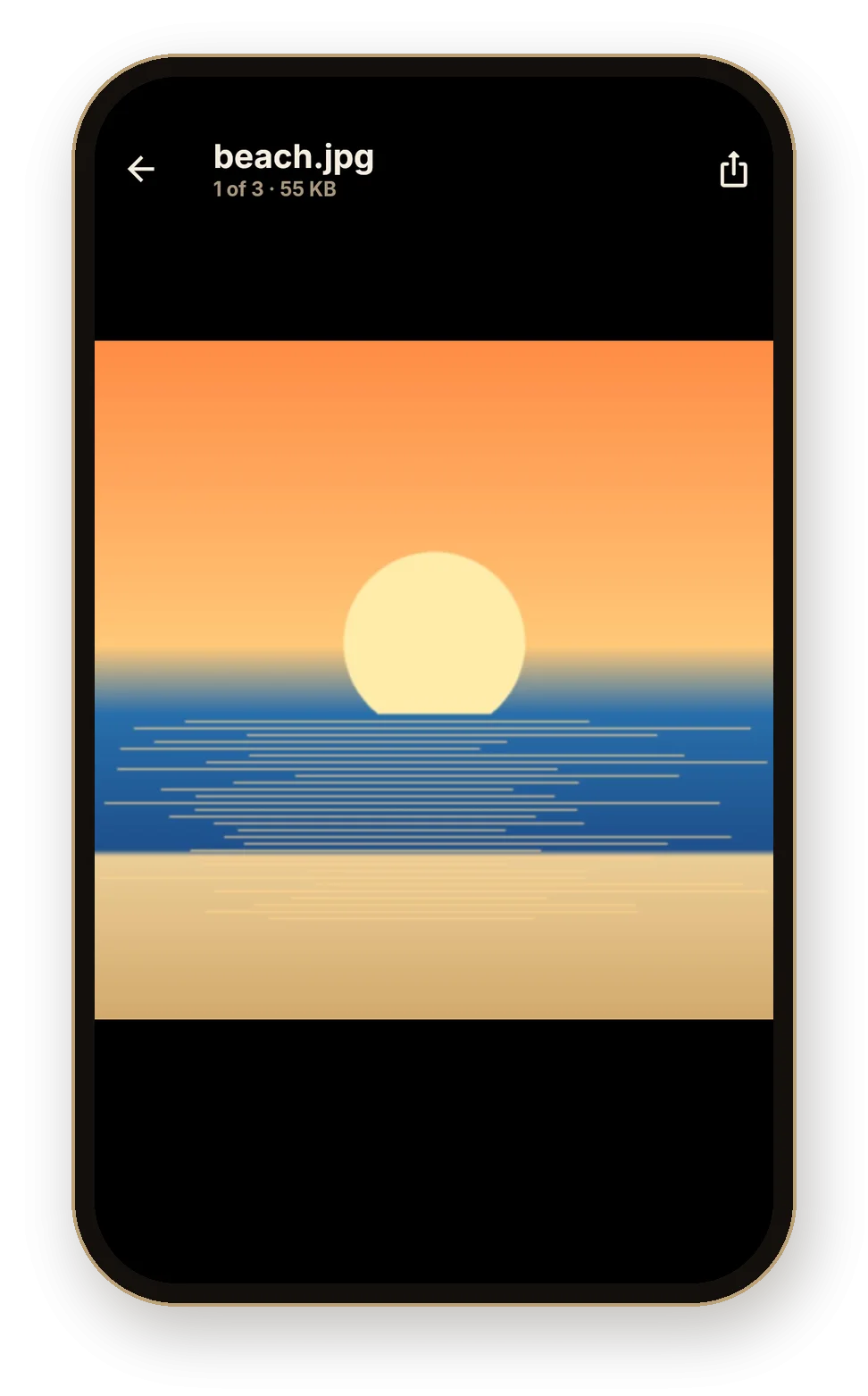
A photo opens with a single tap. You can pinch to zoom, and swipe to the neighbouring shots in the same folder. At the top you can see which photo this is in the sequence and how big it is, and the button on the right lets you share it.
Videos (MP4, MOV, MKV, WebM and other formats your phone supports) and audio also play in the app. Before playback the file is downloaded to a temporary folder and deleted afterwards, so your phone’s storage doesn’t fill up.
Example. A security camera saves its recordings to your home server. You open the right folder and watch the clip right on your phone, without moving anything by hand.
07. A code editor with syntax highlighting
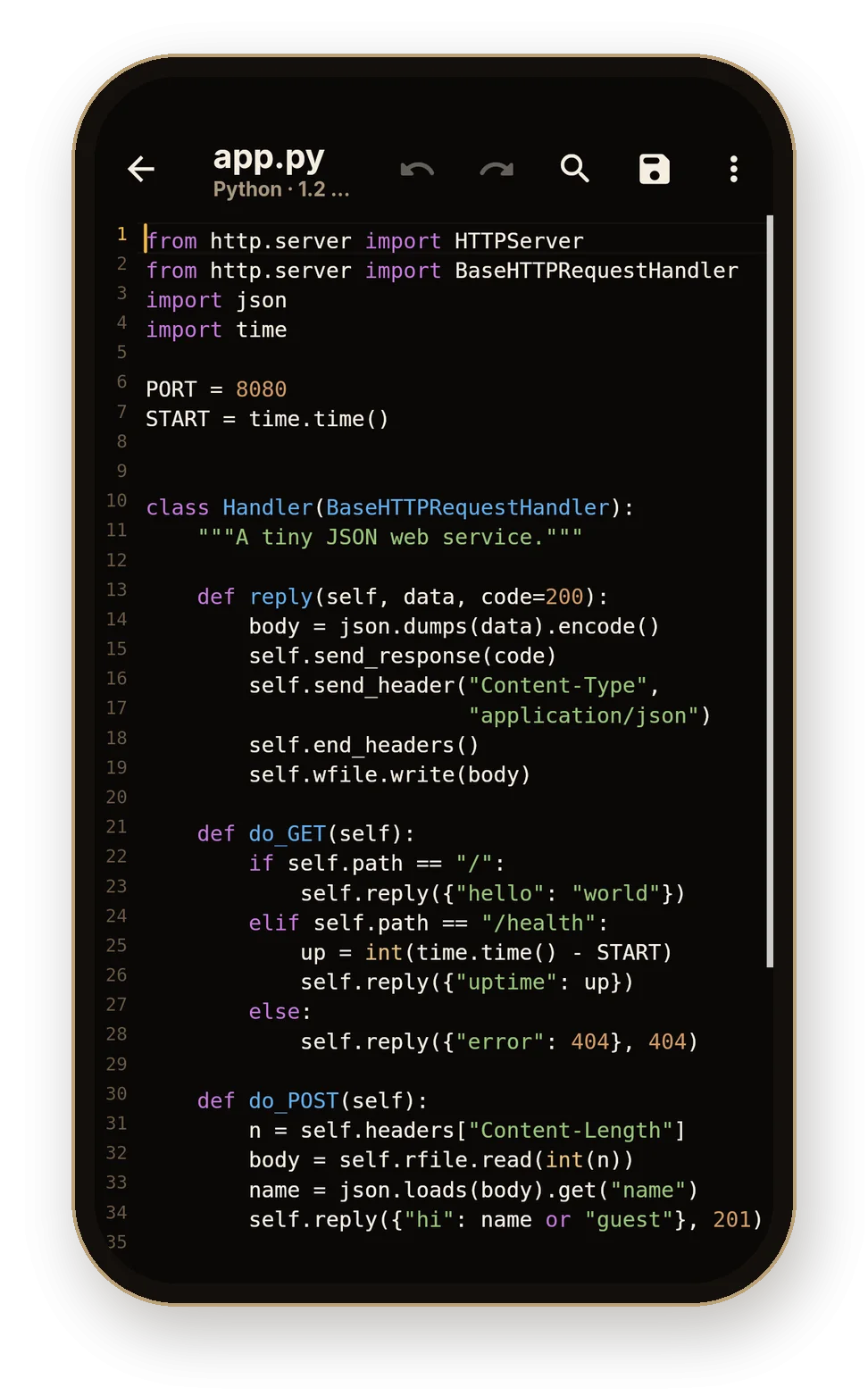
Text files and code open in the built-in editor with line numbers and syntax highlighting. Highlighting covers more than 25 languages and formats: Python, PHP, JavaScript and TypeScript, Go, Rust, Bash, SQL, JSON, YAML, INI, XML, Markdown, Dockerfile, nginx configs and more. The language is detected from the file, and you can pick it manually from the menu.
At the top there are Undo and Redo buttons, search and save. The menu has Find and replace, Word wrap and Select all.
The editor takes care of your files. If a file changed on the server while you were editing it, the app warns you and asks whether to overwrite it. It won’t let you damage a file that isn’t UTF-8. And in the settings you can turn on Backup before saving: a copy named name.bak-DATE will then appear next to the file on the server.
Example. Your website shows an error because of a typo in config.yaml. You open the file, find the line with search, fix it and save. The old version stays next to it as .bak, just in case.
08. An SSH terminal with a handy key bar
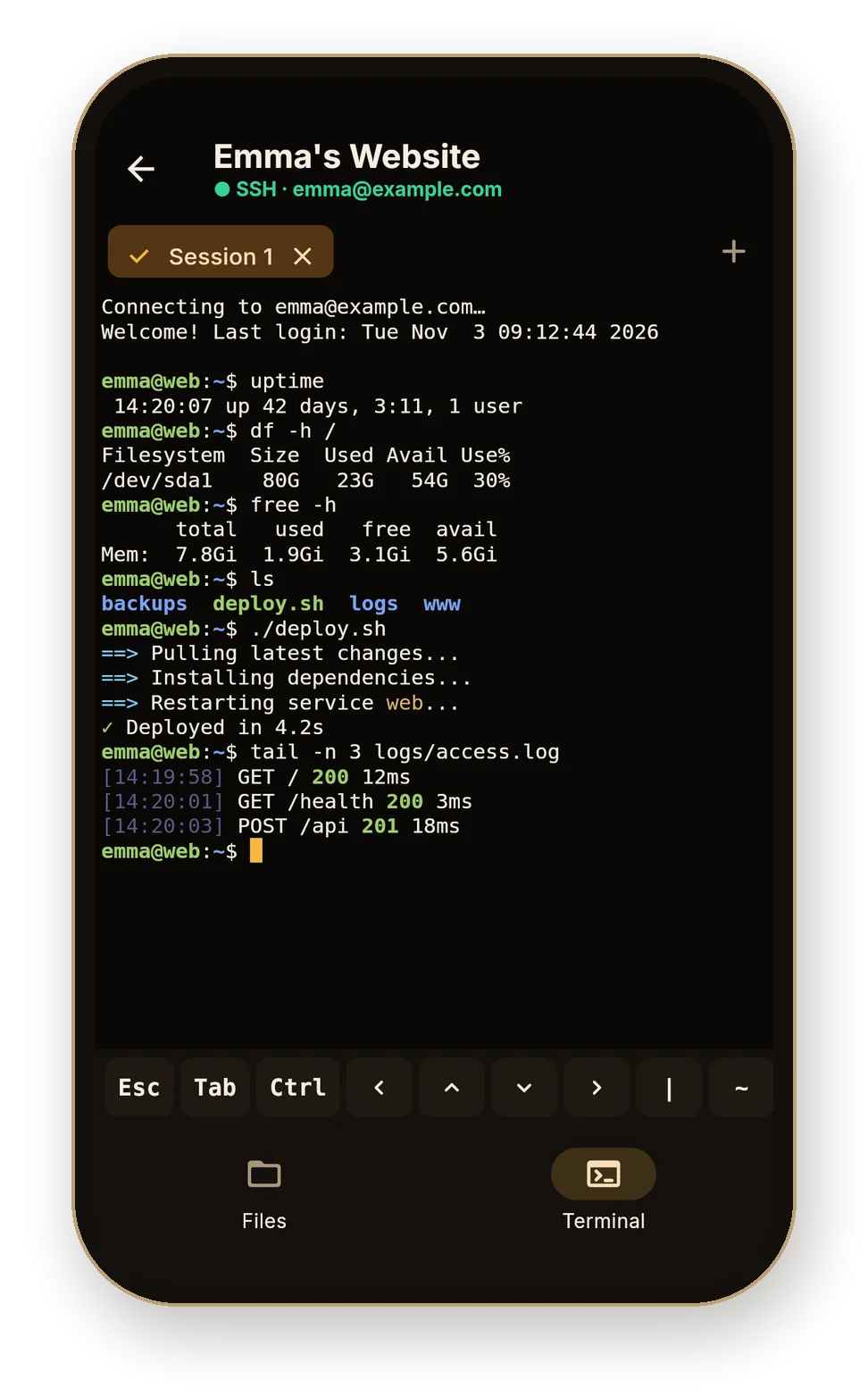
Servers that use the SSH protocol get a Terminal tab. It is a full xterm-256color terminal with colour output, just like the terminal on a computer.
Above the keyboard there is a bar with keys your phone doesn’t have: Esc, Tab, Ctrl, the arrows and the symbols | ~ / -, plus copy, paste and command history. The history is stored only on the device: tap a command and it is inserted without Enter, so you can check it first. If the text you paste has several lines, the app asks first, because such commands run immediately.
You can open several sessions; they appear as tabs at the top. If tmux is installed on the server and Keep terminal sessions (tmux) is on, commands keep running even if the connection drops, and after reconnecting the session comes back as it was.
Example. You started a long package update and then went into the underground with no signal. tmux is installed on the server, so the update keeps going. When the signal returns, you go back to the app, the terminal reconnects, and you see the same session.
09. Security: your passwords and keys stay with you
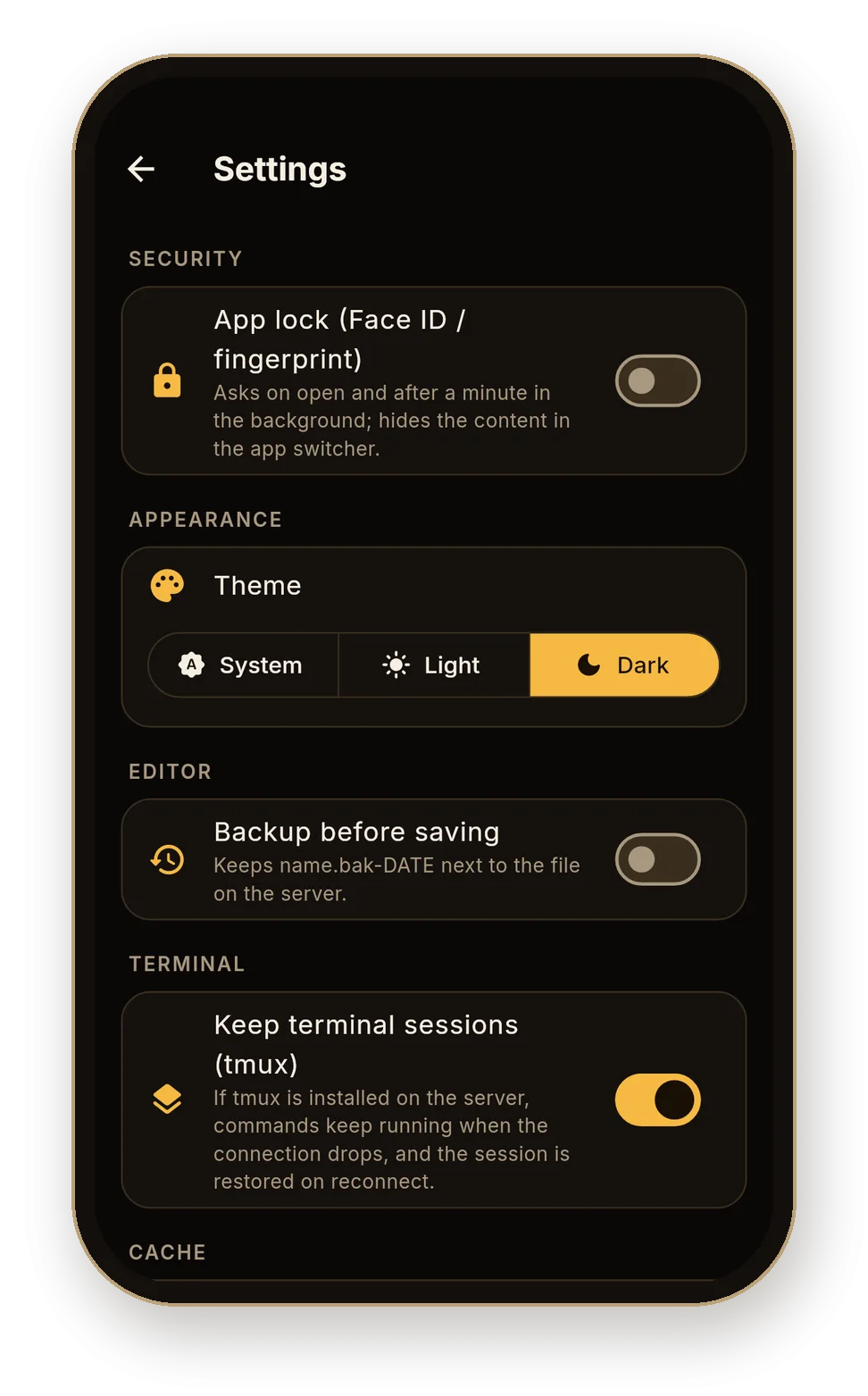
Passwords, passphrases and private keys are stored only in the device’s secure storage and are sent only to your server when you log in. The app has no accounts, no analytics and no tracking: it connects only to the servers you have added.
On the first connection the app remembers the server’s SSH key, and for FTPS also its certificate if the system doesn’t trust it. If the key changes later, you will see the warning Server key changed!, and you will need to confirm it twice to connect. This is how the app protects you against a spoofed server.
In Settings you can turn on App lock (Face ID / fingerprint). The app then asks for Face ID, a fingerprint or the device passcode at launch and after a minute in the background, and hides its content in the app switcher. This is also where you choose the theme: System, Light or Dark.
Example. You hand your phone to a child to play a game. With the lock on, they can’t open My Server or see your servers, even if the app was only minimised.
10. How the iPhone and Android versions differ
The screens, buttons and features are the same in both versions. The differences come from the systems themselves:
- Where passwords and keys are stored. On iPhone and iPad, in the iOS Keychain; on Android, in storage based on the Android Keystore. On Android, the app’s data is also excluded from the system backup.
- Lock. On iPhone it is Face ID or Touch ID; on Android, a fingerprint or another way of unlocking the device. If biometrics are not set up, the device passcode works.
- Going to the background. On iPhone the app asks the system for a little extra time when it goes to the background, so if you switch away briefly, for example to copy a command, the connection doesn’t drop. On both systems, a dropped connection is quietly restored when you return.
- Tablets. On iPad the screen is split in two: the server list on the left and the open server on the right, and the list can be hidden. All orientations and Split View are supported.
- Requirements. iOS 15 or later, Android 7 or later.
Who My Server is for
Website and blog owners. You can upload images, fix a file or check a log from your phone, without waiting until you can get to a computer.
Developers and system administrators. You can restart a service, check disk space or read the logs right from the terminal, wherever you are.
People with their own server or NAS at home. Over SFTP or FTP it is easy to browse photos and videos in your storage and add new files to it.
Anyone who works with hosting over FTP. FTP and FTPS are supported, including implicit mode, so older hosting works too.
Anyone who cares about privacy. No sign-up, no ads and no analytics, and your login details are stored only on the device.
Why My Server
There are separate apps for terminals and separate ones for FTP. If you only need one of those things, they are a good choice too. My Server is handy when you want everything in one place: files, the editor and the terminal open for the same server, with no switching between apps and no re-entering your details.
- Four protocols: SSH, SFTP, FTP and FTPS.
- A file manager with upload, download, copying and photo and video viewing.
- A code editor with highlighting, search and protection against accidental overwrites.
- A terminal with a key bar, history, multiple sessions and tmux.
- Key login, including with a key generated right in the app.
- Passwords and keys only in the device’s secure storage, plus server key verification.
- Free, with no ads, no in-app purchases and no sign-up.
It is worth knowing the limits: FTP works in passive mode only, some FTPS servers with strict TLS session settings are not supported (the app will tell you clearly), and the interface is currently available in five languages: Russian, English, Azerbaijani, French and Italian.
Frequently asked questions
How much does My Server cost?
The app is free. It has no ads, no in-app purchases and no subscriptions.
Do I need to sign up?
No. You don’t need an account: you just add your server and connect.
Where are my passwords and keys stored?
Only on your device, in secure storage: on iPhone in the Keychain, on Android in storage based on the Android Keystore. They are sent to the server only when you log in, and never to the developer.
Can I connect with an SSH key?
Yes. You can paste a key, import it from a file or generate one in the app. OpenSSH, PEM RSA and EC, Ed25519 and ECDSA are supported, including keys with a passphrase.
Does the terminal work over FTP and SFTP?
No, the terminal is available only for SSH connections. With SFTP, FTP and FTPS you can work with files.
What happens if the connection drops?
When you return to the app, a dropped connection is restored automatically. If tmux is installed on the server and session saving is on, commands in the terminal keep running and the session comes back as it was.
Can I edit files right on the server?
Yes. The built-in editor highlights syntax, can find and replace, and checks before saving whether the file has changed on the server. If you like, a .bak copy is saved next to it.
Give it a try
Add one of your servers, open your website folder and take a look at the terminal: within a couple of minutes you will know whether My Server suits you. The app is free: App Store for iPhone and iPad, Google Play for Android. More details are on the app page.
Still have a question? Write to us and we’ll help.